
Applies to: Workforce · Premium · LawBillity · Billing (mobile app)
If your account uses time cards, the app opens straight to the Time Card screen (there's no Dashboard). It's built for clocking in and out quickly while keeping track of your hours for the day and week.
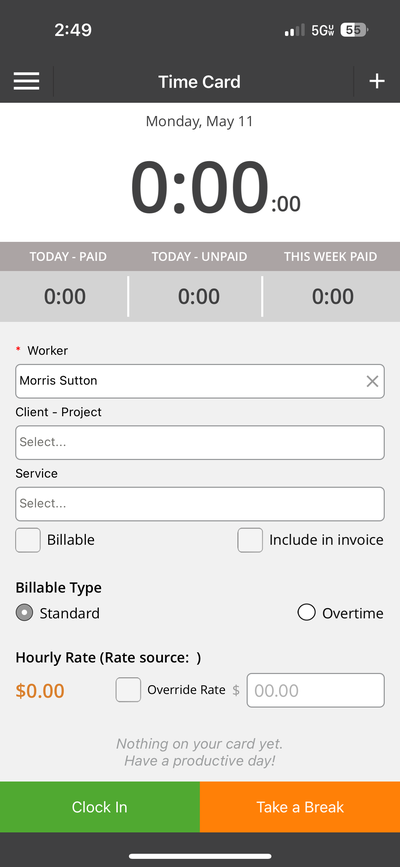
The Time Card screen, with your totals at the top and Clock In at the bottom.
What's on the Screen
- Today’s date and a large clock showing your time so far today (0:00:00 if you haven't clocked in).
- Today - Paid, Today - Unpaid, and This Week Paid: your totals, updated as you work.
- Worker: you, filled in already.
- Client - Project and Service: what you're working on.
- Billable and Include in Invoice: whether this time gets billed.
- Billable Type and Hourly Rate, with an optional Override Rate.
- Clock In (green) and Take a Break (orange) at the bottom.
What You Can Do Here
- Clock in, take a break, and clock out. See Mobile: Clocking In, Taking Breaks, and Clocking Out.
- Add an entry for time you've already worked with the + icon. See Mobile: Adding a New Time Entry (Time Card Mode).
Common Problems
- You’d rather use timers. Your admin chooses timers or time cards for the firm at Admin > Settings > Time Tracking Method in the web app. See Timer vs. Time Card: Which Should I Use?.