
Applies to: Workforce · Premium · LawBillity · Billing (mobile app)
The app opens to one of two home screens, depending on how your admin set up your account. If you see a grid of icons, you're in Timer mode. If you see a big clock with a Clock In button, you're in Time Card mode.
Timer Mode: The Dashboard
The Dashboard gives you one-tap access to the things you do most:
The clock icon at the top right shows how many timers are running. Tap it to manage them. See Mobile: Managing Running Timers.
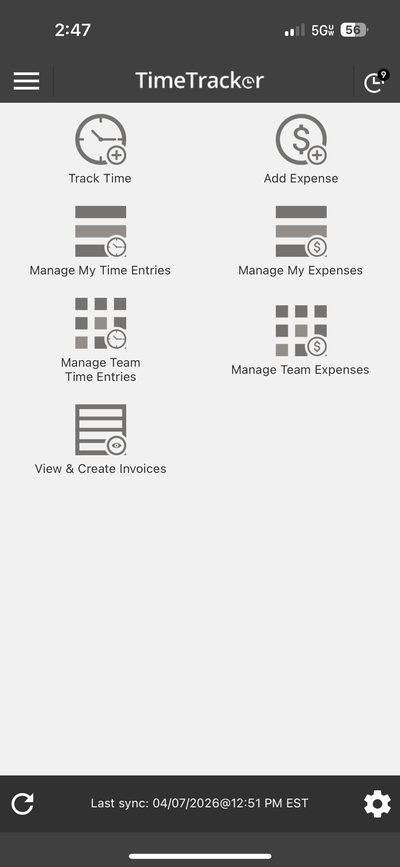
The Dashboard in Timer mode. Tap any icon to get started.
Time Card Mode
There's no Dashboard in this mode. The app opens straight to the Time Card screen so you can clock in with one tap. You'll see:
- Today's date and a clock (0:00:00 until you clock in).
- Three totals: Today - Paid, Today - Unpaid, and This Week Paid.
- Fields for Worker, Client-Project, Service, Billable, Include in Invoice, Billable Type, and Hourly Rate.
- Clock In (green) and Take a Break (orange) at the bottom.
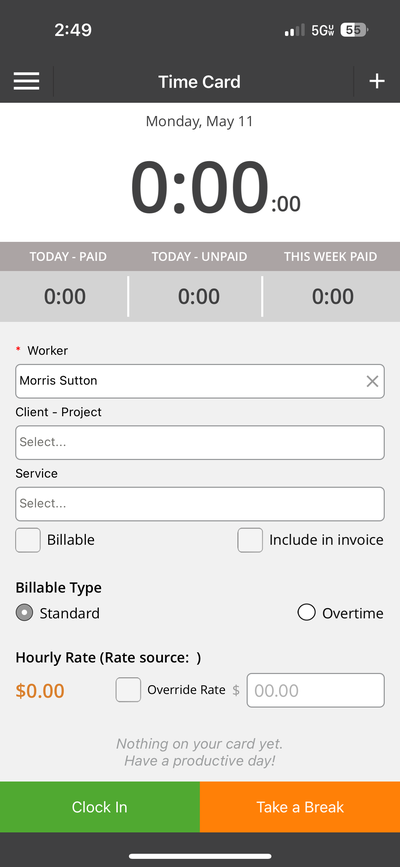
The Time Card screen. Tap Clock In to start your day.
See Mobile: Clocking In, Taking Breaks, and Clocking Out.
Common Problems
- You want the other mode. Your admin chooses Timers or Time Cards for the whole firm in the web app, at Admin > Settings > Time Tracking Method. You can't switch it in the app. See Timer vs. Time Card: Which Should I Use?.
- Your running timers disappeared. Switching the firm from Timers to Time Cards stops and deletes any running timers. Entries you already saved are kept.
- Some icons are missing. Expense, invoice, and team icons only show up if your plan and role include them.