
Applies to: Workforce · Premium · LawBillity (mobile app)
If your company uses scheduling, you can check your shifts from your phone. Open the menu and tap Schedule.
Choosing a View
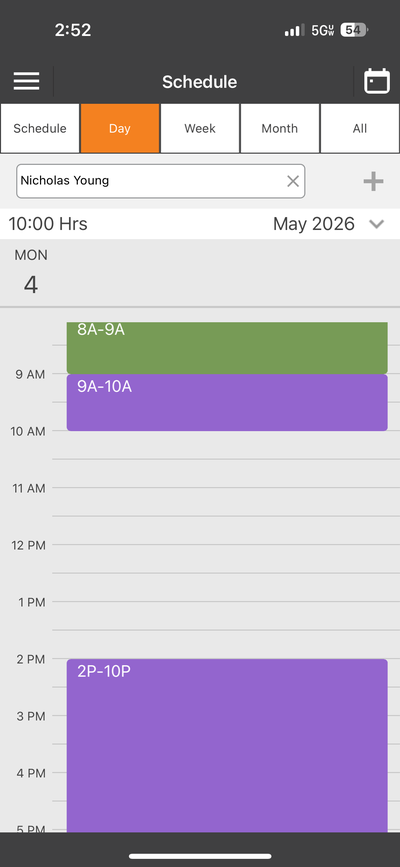
Day view, with each shift as a colored block on the timeline.
Reading the Schedule
- Each block shows the shift's time range, for example 8A-9A or 2P-10P. Different colors are different shifts or assignments.
- The total scheduled hours for the period show at the top left, for example 10:00 Hrs.
- Use the drop-down at the top right to go to another month.
- Managers can use the employee filter to see anyone's schedule, and can tap the + icon to add a shift if they have permission.
Common Problems
- Your schedule looks wrong. Shifts are set by your manager or admin. Contact your manager.
- There’s no Schedule in the menu. Your company may not use scheduling.
- Something changed on the web but not on your phone. Tap the refresh icon in the sync bar. See Mobile: How Syncing Works.
For more, see Viewing Your Schedule (Employee Guide).