
Applies to: Billing
Everything in Time Tracker Billing is in the sidebar on the left. It's on every page, so once you know what's behind each item, you can get anywhere in one or two clicks.
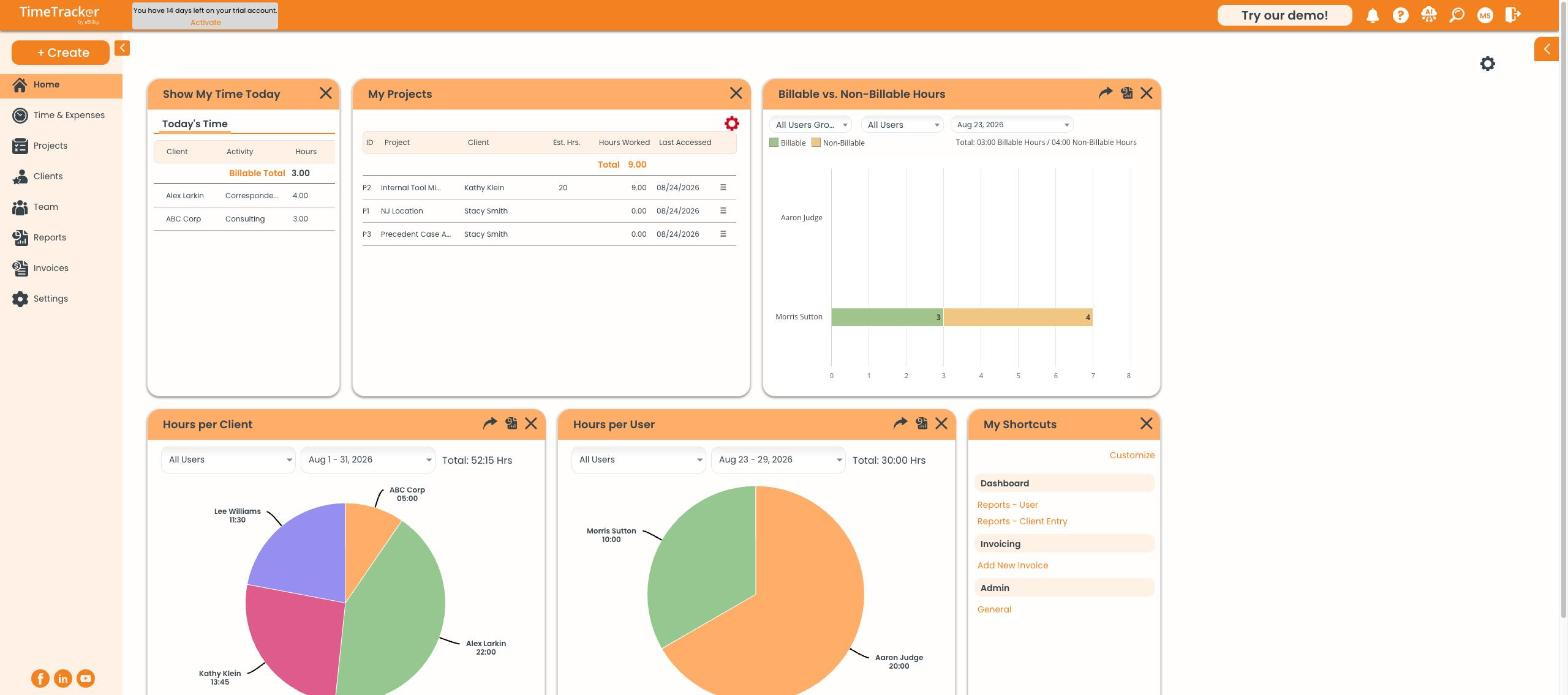
The sidebar runs down the left side of every page. Click the picture to see it full size.
What's in the Sidebar
Making More Room
Click the small arrow at the top of the sidebar to shrink it to icons. This helps on wide screens like the invoice entry picker. Click it again to bring the labels back.
Common Problems
- You can’t find Schedule, Calendar, Contacts, or Documents. Those are on other Time Tracker plans, not Billing. See Why Can't I Find a Feature? (What's Not in Time Tracker Billing).
- There’s no Billing or Payments menu. Invoices, payments, and adjustments are all under Invoices, on separate tabs.
- Create Time Entry or Create Expense Entry does nothing. These open in a separate window, so your browser blocked the pop-up. Allow pop-ups for secure.ebillity.com and click again.