
Applies to: Workforce · Premium · LawBillity
Can't find a page? Almost everything in Time Tracker is one or two clicks away in the left menu. Use this as a map.
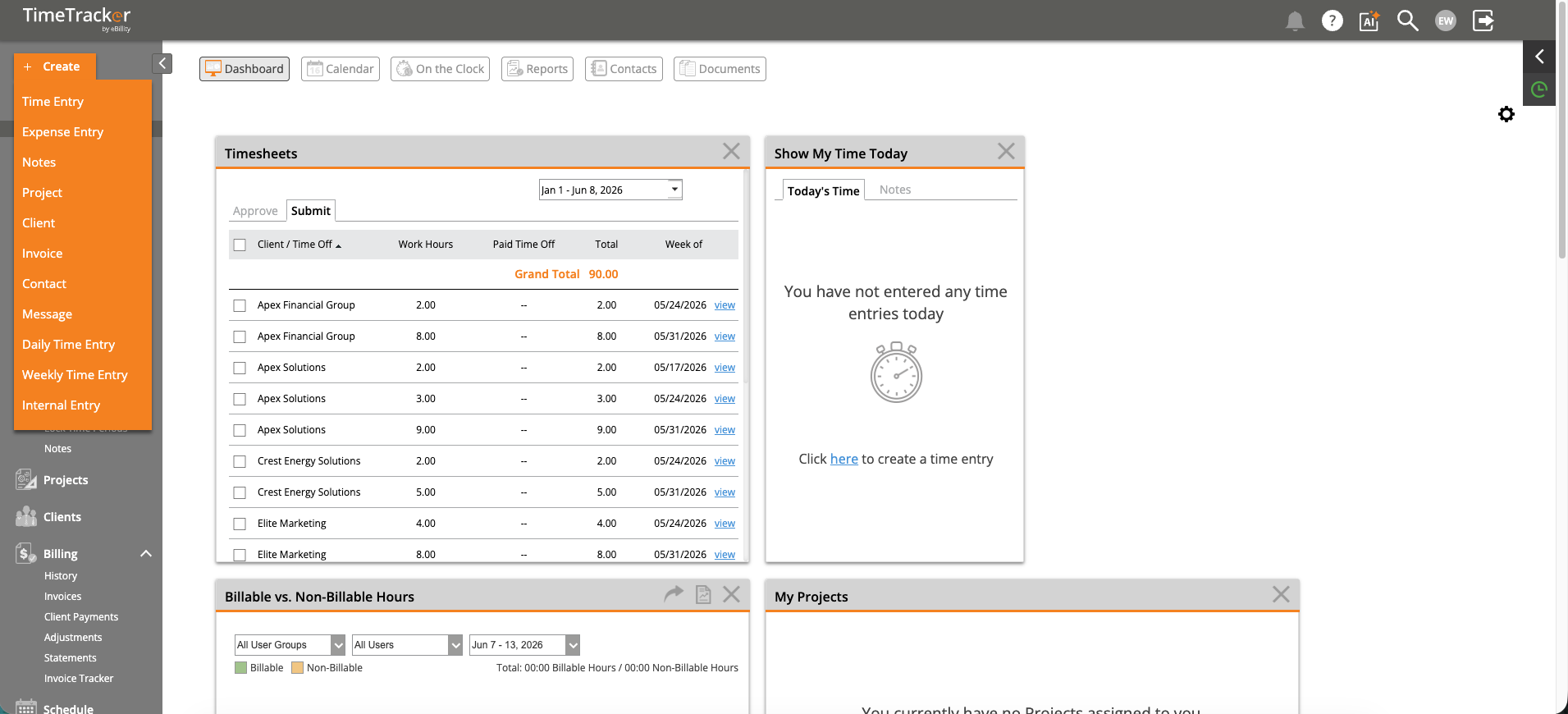
The + Create menu open on the Dashboard.
What's in the Left Menu
Your Account Menu and Help
Click your picture or initials at the top right for My Account, Plan Info, Subscription, Login History, Auto Text, Notification Settings, and Logout. The ? icon next to it opens the support panel.
Note: Menu names follow your firm's own terms. You may see Customers instead of Clients, or Matters instead of Projects. See
Renaming Clients, Projects, and Other Terms.
Creating Something from Any Page
Click + Create at the top left to add a Time Entry, Expense Entry, Notes, Project, Client, Invoice, Contact, Message, Daily Time Entry, Weekly Time Entry, or Internal Entry. It works from every page. Items your plan doesn't include, such as invoices and expenses on Workforce, don't appear.
Common Problems
- Nothing happens when you click Time Entry or Expense Entry. They open in a separate browser window, and your browser blocked it. Allow pop-ups for secure.ebillity.com and try again.
- A menu item listed here isn’t there. Your role may not include it. See What Employees See vs. What Admins See. On the Time Tracker Billing plan the menu is different. See Navigating Time Tracker Billing.
- You can’t find a client or project in a list. See Why Can't I See Certain Clients, Projects, or Activities?.
- You need help from a person. Click the ? icon at the top right. Contact eBillity support by phone at 1-800-851-0992 or 1-732-253-4200, or by email, Monday to Thursday 9:00 am to 6:00 pm ET and Friday 9:00 am to 4:30 pm ET. Live chat is open 24 hours a day, Monday to Friday. See Contacting eBillity Support or ebillity.com/contact-us.