
Applies to: Premium · LawBillity
When a client pays, record the payment so the invoice shows as paid and the client's balance is right. Payments made online through Stripe, LawPay, or CPACharge are recorded for you.
Recording a Payment
- Go to Billing > Client Payments and click Add Payment. You can also open the invoice and click Receive New Payment.
- Enter the amount, the date you received it, and how they paid (check, wire, credit card, and so on).
- If the payment covers more than one invoice, apply it across the client's open invoices.
- Click Save.
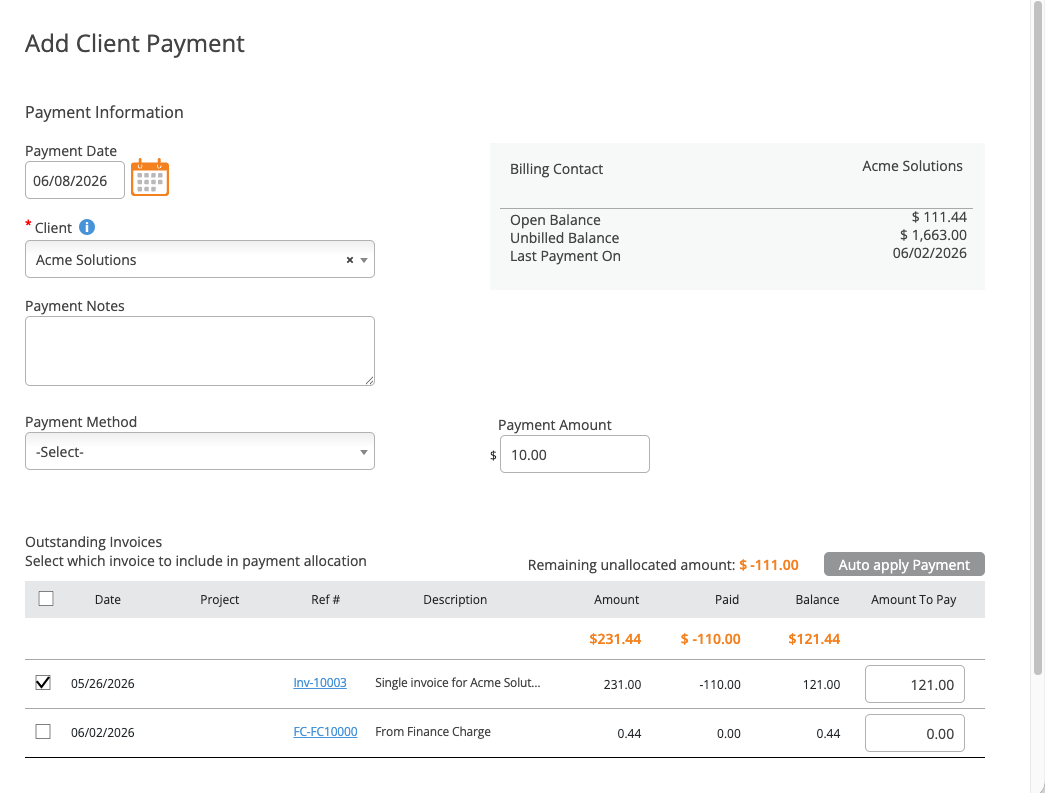
Adding a client payment and applying it to the client's open invoices.
Partial Payments
If the client pays less than the full amount, enter what you actually received. The invoice is marked Partially Paid on Billing > Invoices, the rest stays as the balance due, and you can record more payments later until it reaches zero. Then it's marked Fully Paid.
Where Payments Show Up
- On the invoice, in its payment history.
- On Billing > Invoices, in the invoice's paid amount and balance.
- On client statements, next to the invoices. See Client Statements.
- In the Payment Details report, for matching payments to bank deposits. See Billing & Invoice Reports.
Common Problems
- A payment shows up twice. Online payments are recorded automatically, so don't enter them by hand too. See Setting Up Online Payments (Stripe, LawPay, CPACharge).
- The invoice still shows a balance. The payment may have been applied to a different invoice. Open the payment and check where it was applied.
- The client’s balance looks too low. Draft invoices don't count toward what the client owes until they're finalized. See Finalizing and Sending an Invoice.