
Applies to: Workforce · Premium · LawBillity
Accrual settings decide how people earn hours for a time off code. You can grant a lump sum every year, add hours each pay period, accrue a set amount per hour worked, or skip automatic accruals and add hours by hand. Settings apply firm-wide per code: everyone assigned to the code follows the same rule.
Getting There
There are three ways in. All open the same firm-wide accrual settings:
- When creating a code, tick Track Accruals and click Save & Configure.
- On an existing code, click its name, then Make Edits next to Track Accruals.
- On Entries > Time Off > Balances, click the link in the Accrual Type column.
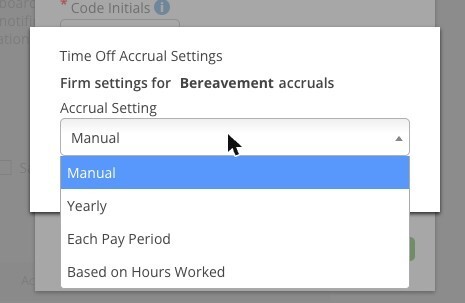
The Accrual Setting dropdown offers four methods.
Choosing an Accrual Method
Setting the Options
Every method except Manual has the same options:
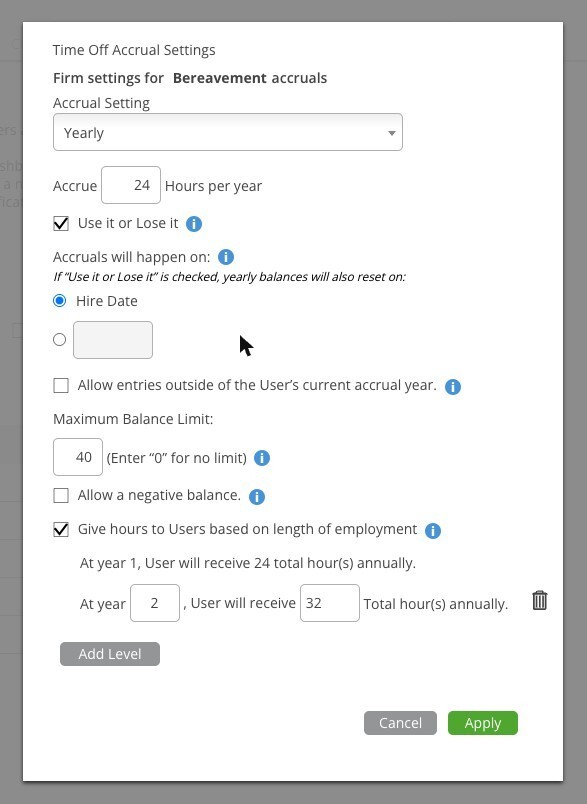
Yearly accrual: 24 hours per year, use-it-or-lose-it, a 40-hour cap, and 32 hours from year two.
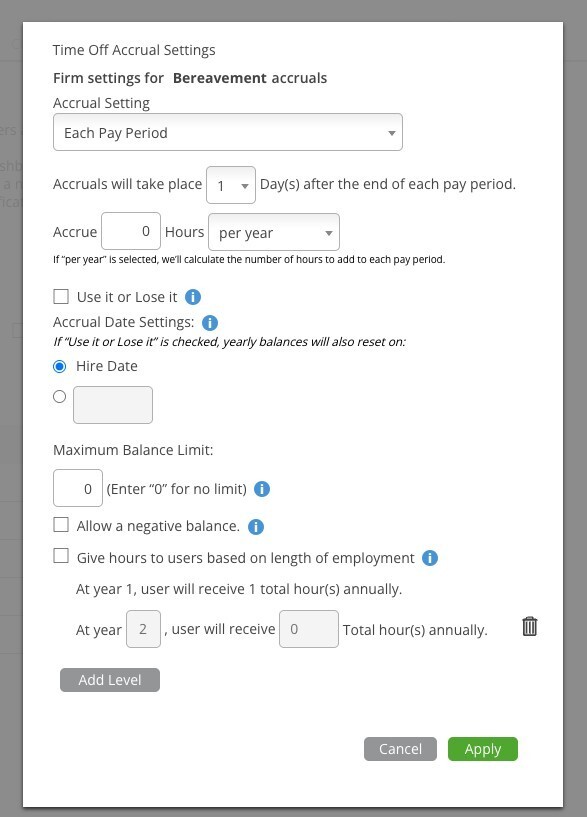
Each Pay Period adds the delay after the period ends and a per-year or per-period choice.
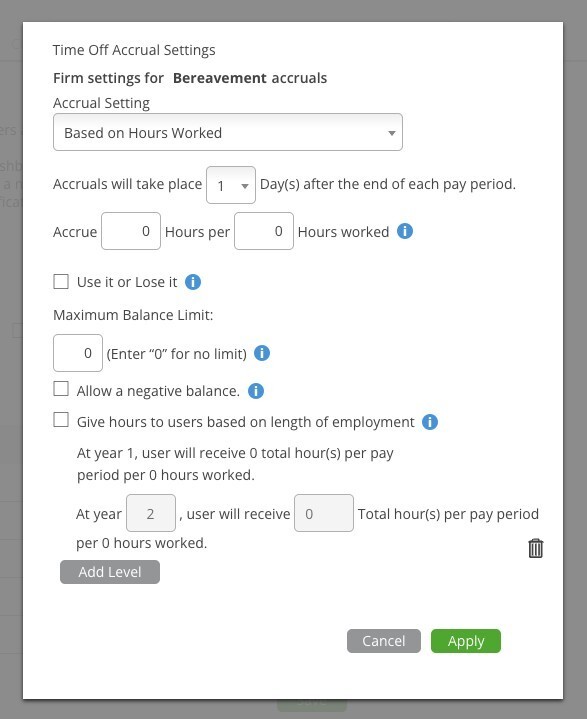
Based on Hours Worked: accrue N hours per N hours worked.
Worked Examples
- 80 hours of vacation a year, reset each January, roll over up to 120: Yearly, accrue 80, Use it or Lose it off, fixed date January 1, Maximum Balance Limit 120.
- Sick leave at 1 hour per 30 worked, capped at 48: Based on Hours Worked, accrue 1 hour per 30 hours worked, Maximum Balance Limit 48.
- Public holidays granted by hand: Manual, then add the hours on the Balances tab each year.
Next Steps
To check what a user has earned, or top up a balance by hand, see Managing Time Off Balances. If a code shouldn't accrue at all, leave Track Accruals unticked when you create it. See Setting Up Time Off Codes.