
Applies to: Workforce · Premium · LawBillity
If your firm uses approvals, a manager or admin checks time before it's final. That catches mistakes before hours reach an invoice or payroll. Here's what happens to an entry from start to finish.
The Approval Flow
- You log time on your timesheet as usual.
- You submit it from Entries > Manage My Entries. See Submitting Time for Approval.
- A manager or admin reviews it on Entries > Approvals or in Manage Team Entries.
- They approve it, or reject it with a reason so you can fix it and submit it again.
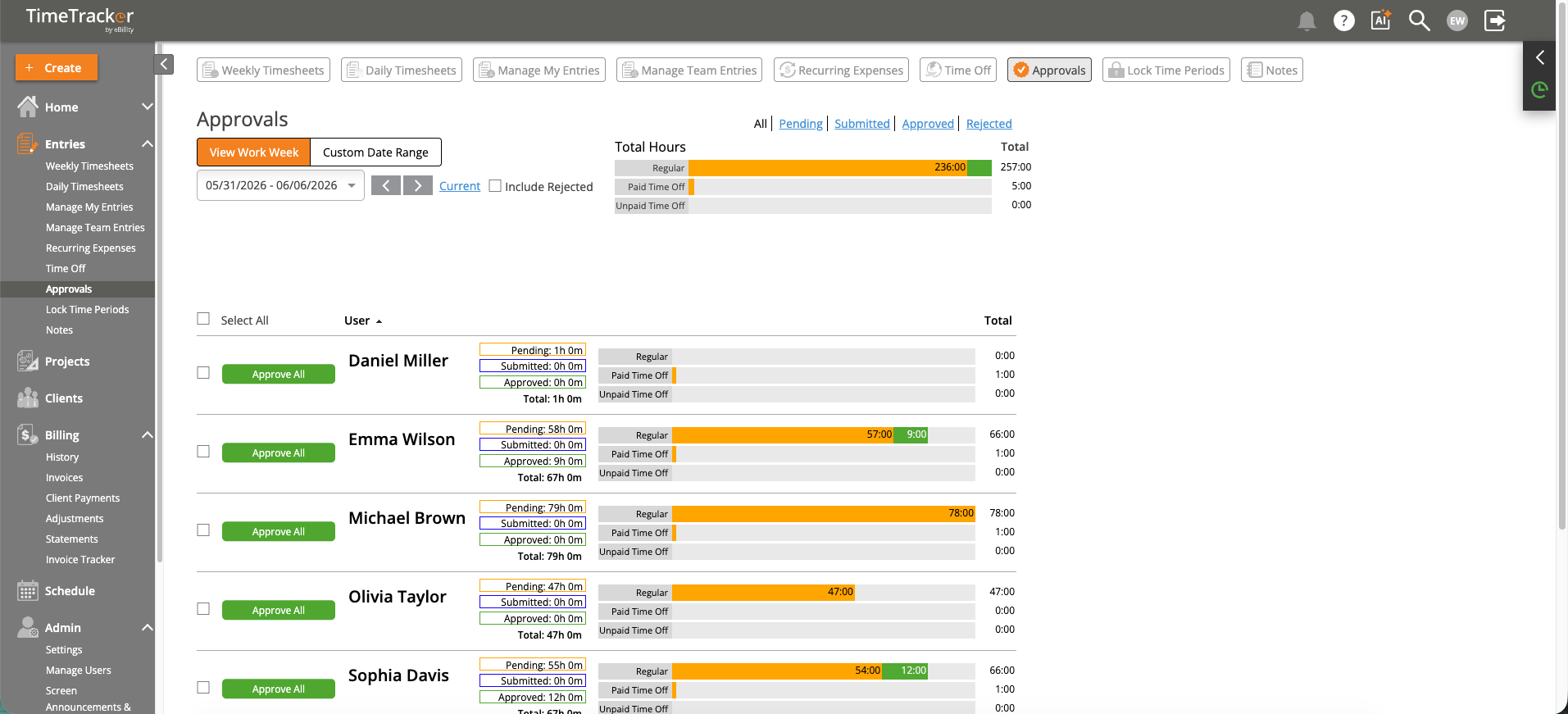
The Approvals page: each person’s Pending, Submitted, and Approved hours.
What Each Status Means
Turning Approvals On
An admin turns approvals on or off for the whole firm in Admin > Settings > System Settings with Approve/Reject Time Entries and Time Off Entries. When it's on, time must be approved before it can go on a finalized invoice, and all time off must be approved. Expenses have a separate switch. See Enabling or Disabling the Approval Workflow.
If a few people don't need their time reviewed, an admin can turn on auto-approval just for them. Open Admin > Manage Users, open the person’s row menu, click Edit User, and set Enable auto-approval for Time Entries and Time Off Entries? to Yes. Expenses have their own auto-approval setting on the same page.
When There's More Than One Approver
With Multi-Level Approvals turned on, each user has an approval hierarchy, and their entries go to each approver in order. If an approver rejects an entry, it goes back to the previous approver. If the first approver rejects it, it goes back to the user.
Common Problems
- You can’t edit an entry you already submitted. Take it back first: in Manage My Entries, click Submitted, tick the entry, and click Revert to Pending. See Editing, Deleting, or Taking Back a Time Entry.
- You can’t edit an approved entry. Approved entries are view-only. Ask your approver to reject it, then fix it and submit it again. See I Can't Edit a Time Entry.
- You can’t edit an entry on a locked day. An admin or manager locked that period. They can still edit the entry for you, or unlock the day. See I Can't Edit a Time Entry.
- An invoice won’t finalize with some entries on it. Those entries aren't approved yet. Approve them first. See Selecting Entries for an Invoice.
- Your manager can’t see your time. It's still Pending. Submit it so it's waiting for them.