
Applies to: Billing
These settings decide how your whole team records time: whether entries round, whether time starts as billable, and what the timesheet grid looks like. Set them early, before habits form around the defaults.
Timer Settings
Click Settings > Timer Settings.
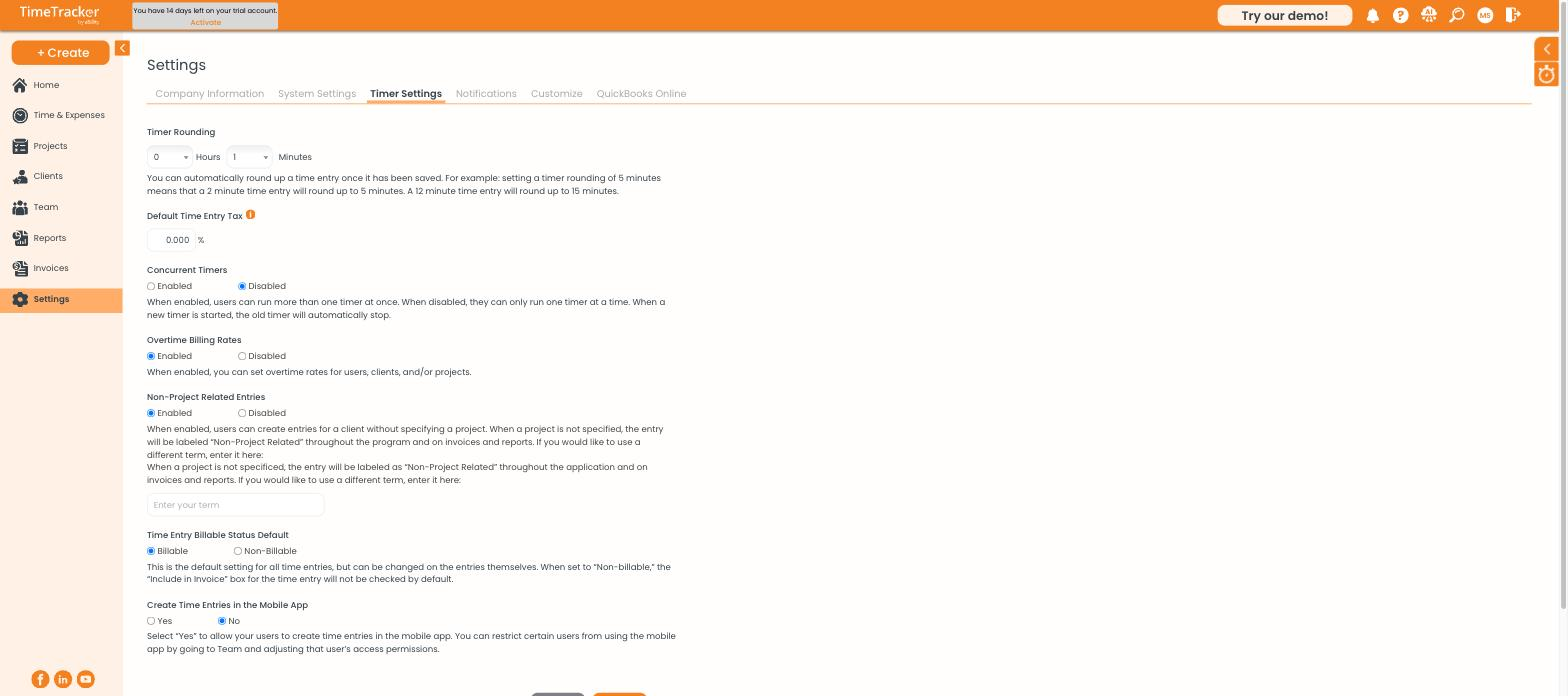
Timer Settings: rounding, concurrent timers, overtime rates, and billable defaults.
Timesheet Appearance
Click Settings > Customize > Timesheets. A live preview below the settings shows each change before you save.
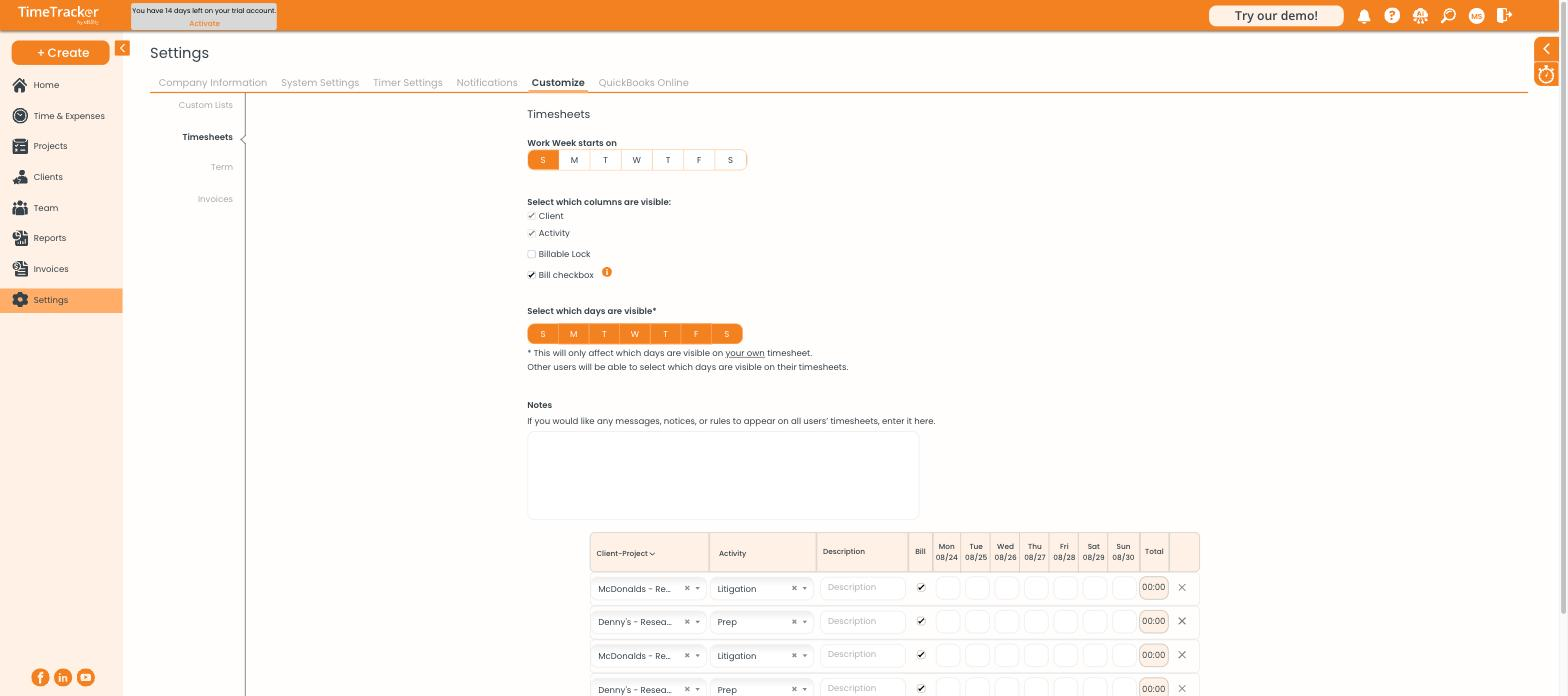
Timesheet options, with a live preview of the grid below.
- Work Week starts on: the grid's first day.
- Columns: show or hide Client, Activity, Billable Lock, and the Bill checkbox.
- Days: hide days nobody works. This only changes your own timesheet. Each user picks their own days.
- Notes: a message on everyone's timesheet, handy for deadline reminders.
Common Problems
- Old entries didn’t change after you turned on rounding. Rounding only applies to entries saved from now on.
- There are no overtime rate fields. Turn on Overtime Billing Rates first. See How Billing Rates Work.
- Someone’s timesheet shows different days than yours. Each person chooses their own visible days.