
Applies to: Billing
If you work on the same clients and projects most of the week, the weekly timesheet is the fastest way to log your time. It shows the whole week on one screen: a row for each client and project, and a column for each day.
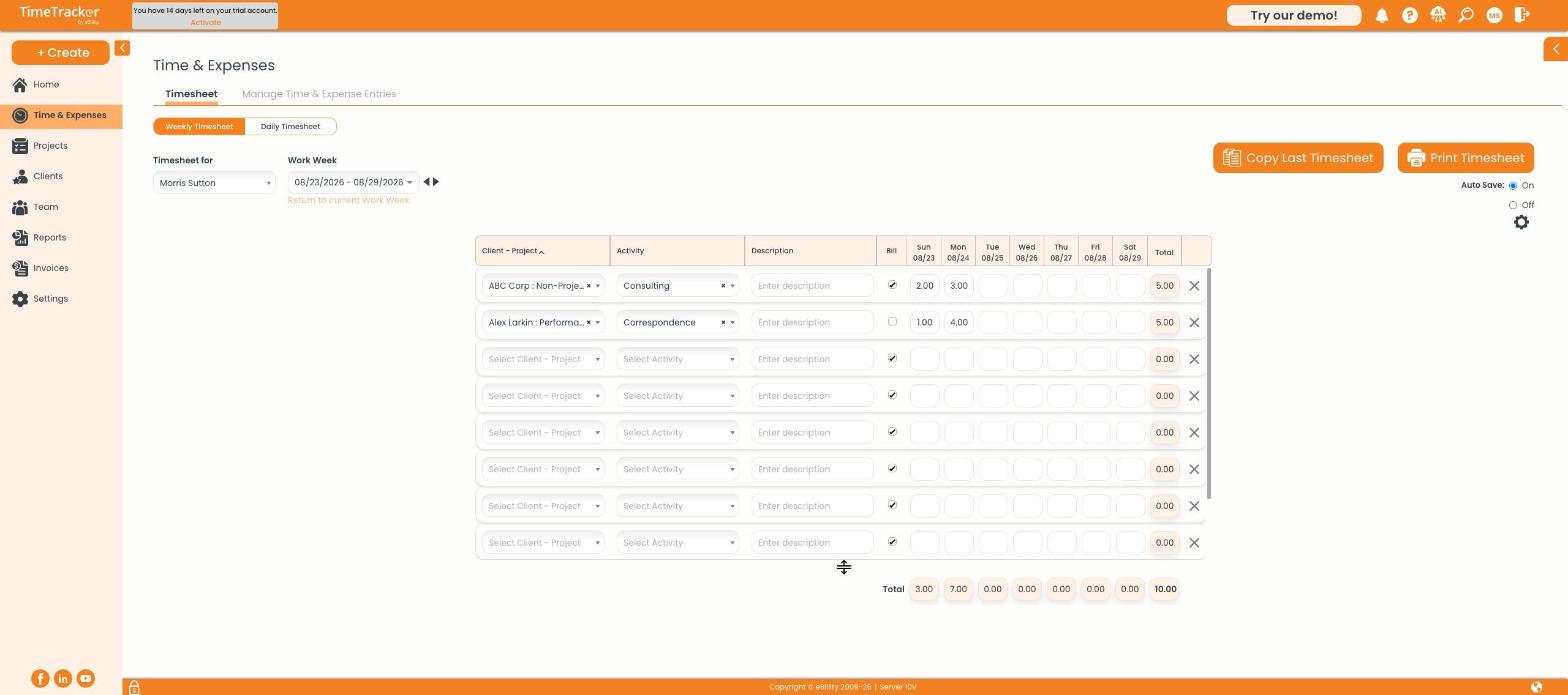
The weekly timesheet: one row per client-project, one column per day.
Entering Your Hours
- Click Time & Expenses and make sure Weekly Timesheet is selected at the top.
- In an empty row, click Select Client - Project and choose one.
- Choose an Activity: the type of work, such as Consulting or Design.
- Type a Description if you like. It shows on the invoice, so write it for the client.
- Leave Bill ticked if the client pays for this time. Untick it for internal work.
- Type your hours under each day as decimals: 2.5 is two and a half hours.
Row totals update as you type. The totals bar at the bottom shows each day's total and the week's total.
Saving Time Every Week
- Copy Last Timesheet fills this week with last week's rows, activities, and Bill settings. You only type the new hours.
- Auto Save at the top right is on by default, so entries save as you type. Turn it off if you'd rather review the week first and save it yourself.
- Print Timesheet gives you a clean copy of the week, handy when a client wants a signed record of hours.
Common Problems
- A row won’t save. A billable row needs both a client-project and an activity. Fill in both, or untick Bill.
- Your client or project isn’t in the list. The client may be disabled or the project closed, or you may not be on the project's Users tab. Ask your admin. See Creating and Managing Projects.
- You can’t change some hours. Those entries are on an invoice. Billed entries are locked, and Pre-Billed ones need to come off the draft invoice first. See Understanding Billing Statuses: UnBilled, Pre-Billed, and Billed.
- A day is missing, or the week starts on the wrong day. Visible days and the week start are set in Settings > Customize > Timesheets. See Configuring Timer and Timesheet Settings.
- Your hours disappeared when you left the page. Auto Save was probably off. Save before you leave, or turn Auto Save back on.