
Applies to: Workforce · Premium · LawBillity
A person's role decides what they can see and change in Time Tracker. You pick it when you add them. Most people should be employees. Save the admin roles for people who manage billing, settings, or users.
The Four Roles
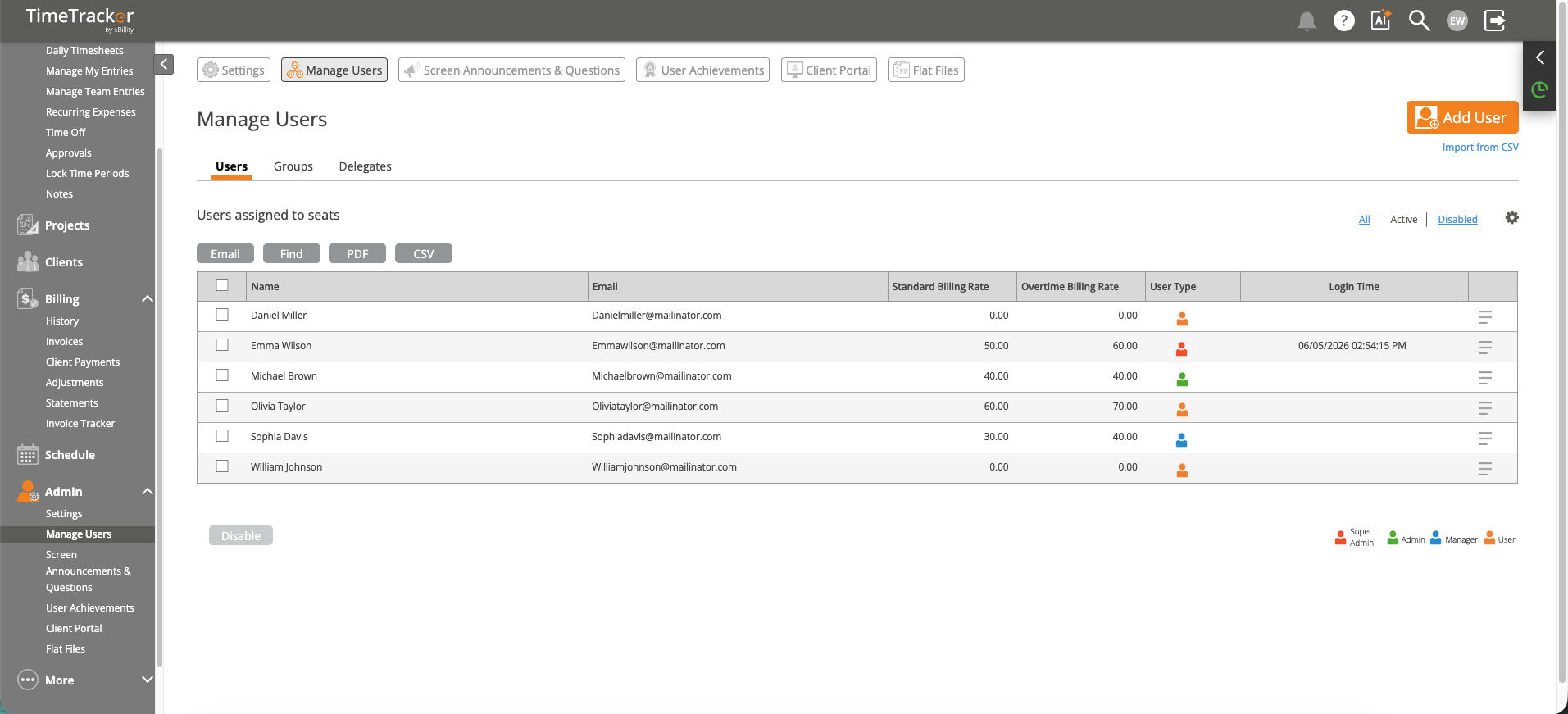
Manage Users lists everyone with their role, billing rate, and last login. Click the picture to see it full size.
Setting or Changing a Role
The role is set on the Access Permissions tab of the person's profile. You choose it when you add someone (see How to Invite and Add New Users). To change it later, go to Admin > Manage Users, open the person's row menu, click Edit User, and open the Access Permissions tab.
Going Beyond Roles
A role sets the general level. To limit which clients and projects someone can see, use the same Access Permissions tab. Client access is All, Some, or No, and new admins always get all clients. See Choosing What Each User Can See (Access Permissions). For a side-by-side view, see What Employees See vs. What Admins See.
Common Problems
- An employee can’t find a menu, like Billing or Admin. Employees don't see admin settings, billing, integrations, user management, or other people's data. Check their role first.
- A manager can’t see someone’s time. Managers only see people they have access to. See Choosing What Each User Can See (Access Permissions).
- Your menus say Workers instead of Users. Your firm renamed its terms. See Renaming Clients, Projects, and Other Terms.