
Applies to: Workforce · Premium · LawBillity
Your firm's name, address, and phone number appear on the invoices, statements, and reports you send out. If you've moved or rebranded, update them here before you send the next round of invoices.
Changing Your Firm Details
- Click Admin > Settings.
- Open Firm Information.
- Update your company name, address, phone number, and website.
- Click Save.
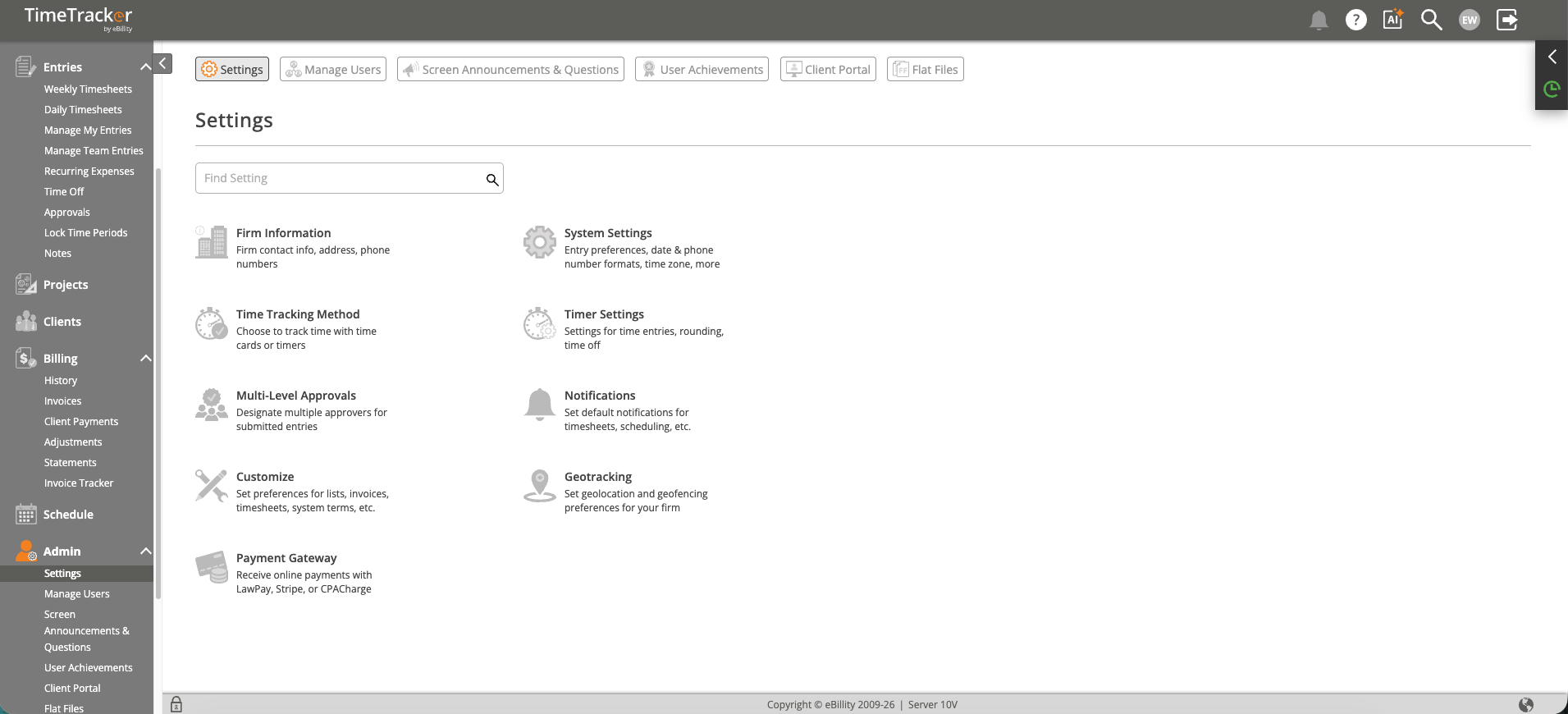
Admin > Settings. Firm Information is one of the settings pages listed here.
New invoices use the new details. Invoices you've already created keep the details they were made with.
Note: Your invoice logo isn't on this page. It's under
Settings >
Customize >
Invoices. Your currency, time zone, and date format are under
Settings >
System Settings. See
Setting Up Your Invoices: Logo, Template, Late Fees, and Discounts.
Also on This Page
- Time Tracker Plan shows which plan you're on. Click Manage Subscription to change your plan or add user seats. See Managing Your Subscription.
- Export all data for your firm downloads a .zip file of 14 CSV files with all your data. See Exporting All of Your Firm's Data.
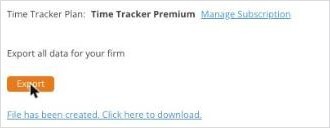
The plan, Manage Subscription, and the full data export on the Firm Information page.
Where These Details Appear
- Invoices and client statements: your firm name and address in the header.
- Reports: your firm name in the header of exported and printed reports.
- Client Portal: your firm's details when clients sign in to view or pay invoices.
Common Problems
- You can’t find Admin > Settings. Only admins can change firm settings. Ask an admin at your firm.
- An old invoice still shows your old address. That's expected. Invoices keep the details from when they were created. Only new invoices pick up the change.
- Your logo is missing or out of date on invoices. Upload it under Customize > Invoices, not here. See Setting Up Your Invoices: Logo, Template, Late Fees, and Discounts.