
Applies to: Billing
Start a timer when you begin a task and save it when you're done. The time lands on your timesheet as a normal entry, so you don't have to remember at 5pm how long that morning call ran.
Starting a Timer
- Click Time & Expenses and select Daily Timesheet.
- Click Start New Timer next to the Timers in Progress heading. The clock starts right away.
- Choose the Client-Project and Activity. You can do this while it runs.
- Add a description so you remember what the time was for.
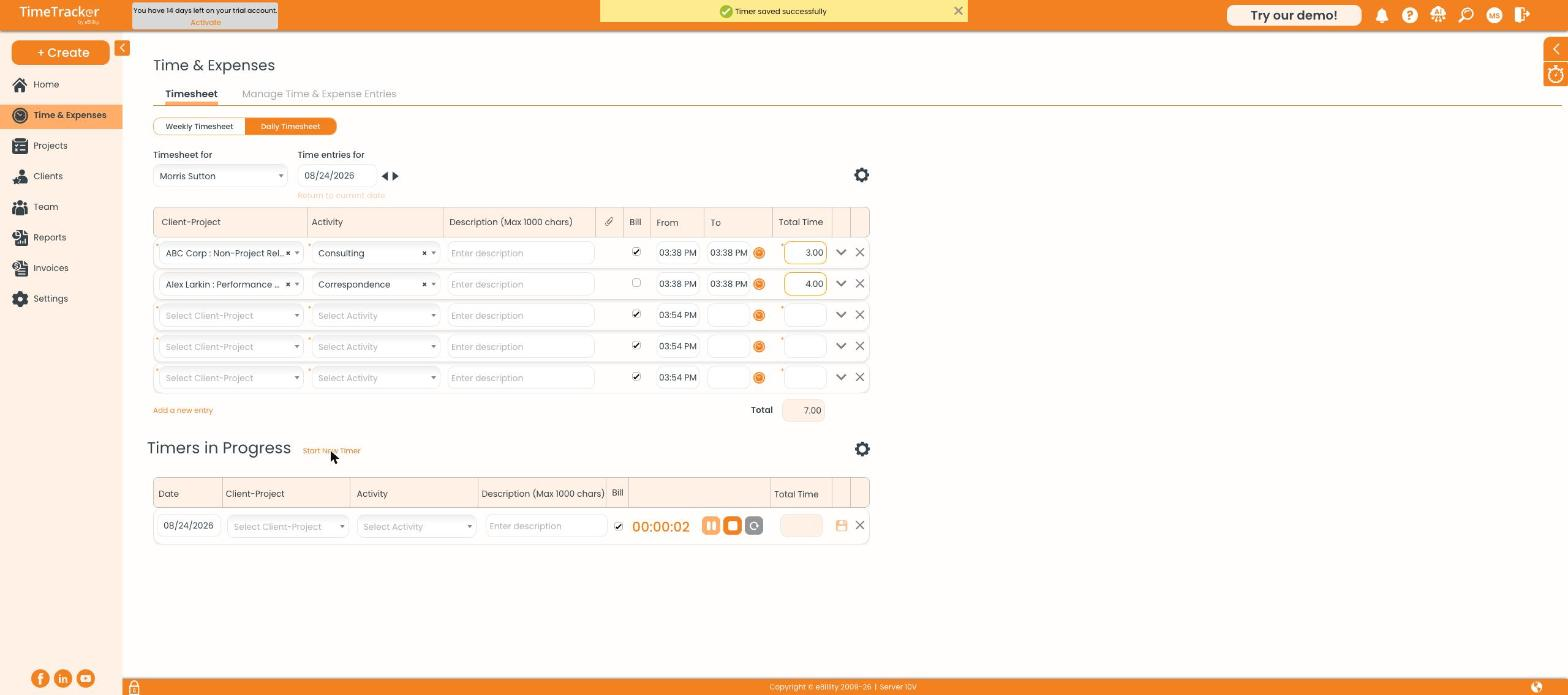
The timer starts counting as soon as you click Start New Timer.
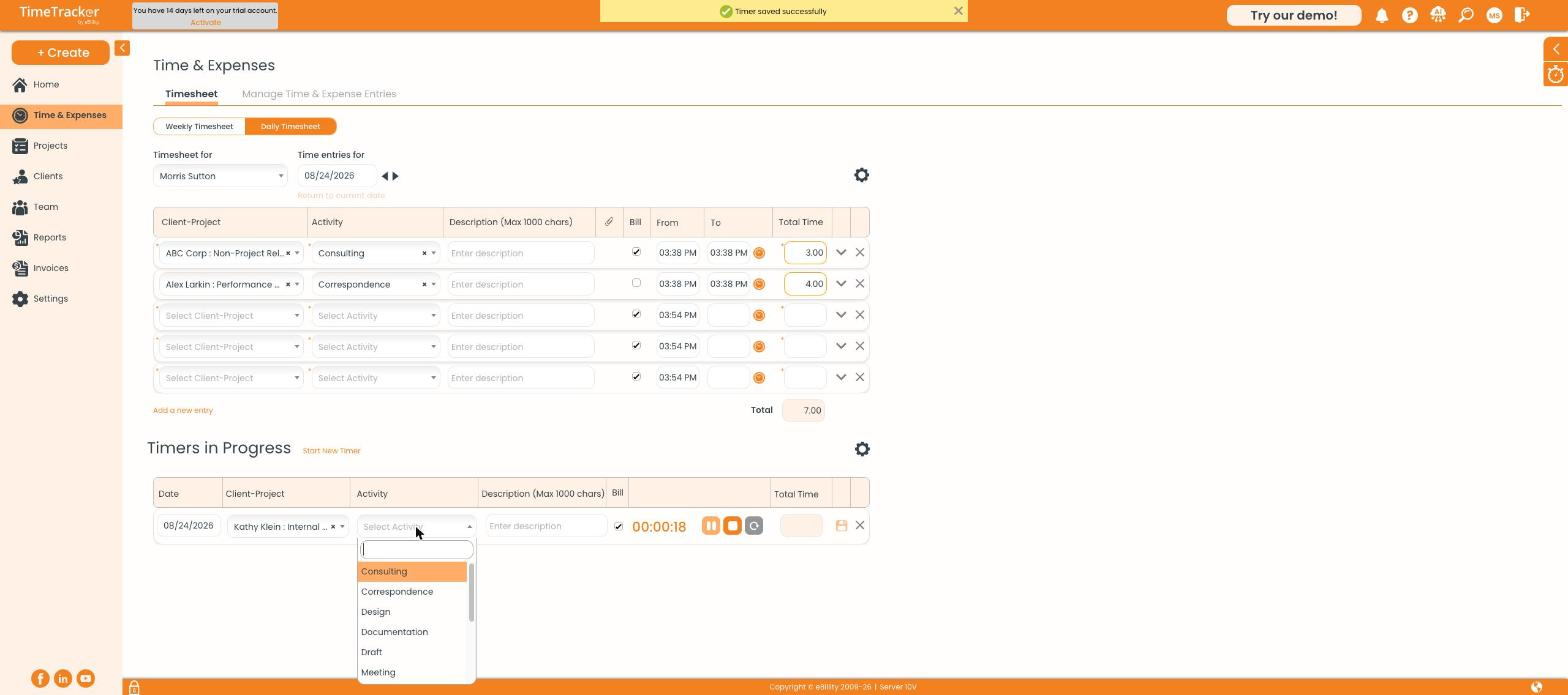
Choose the activity while the timer keeps running.
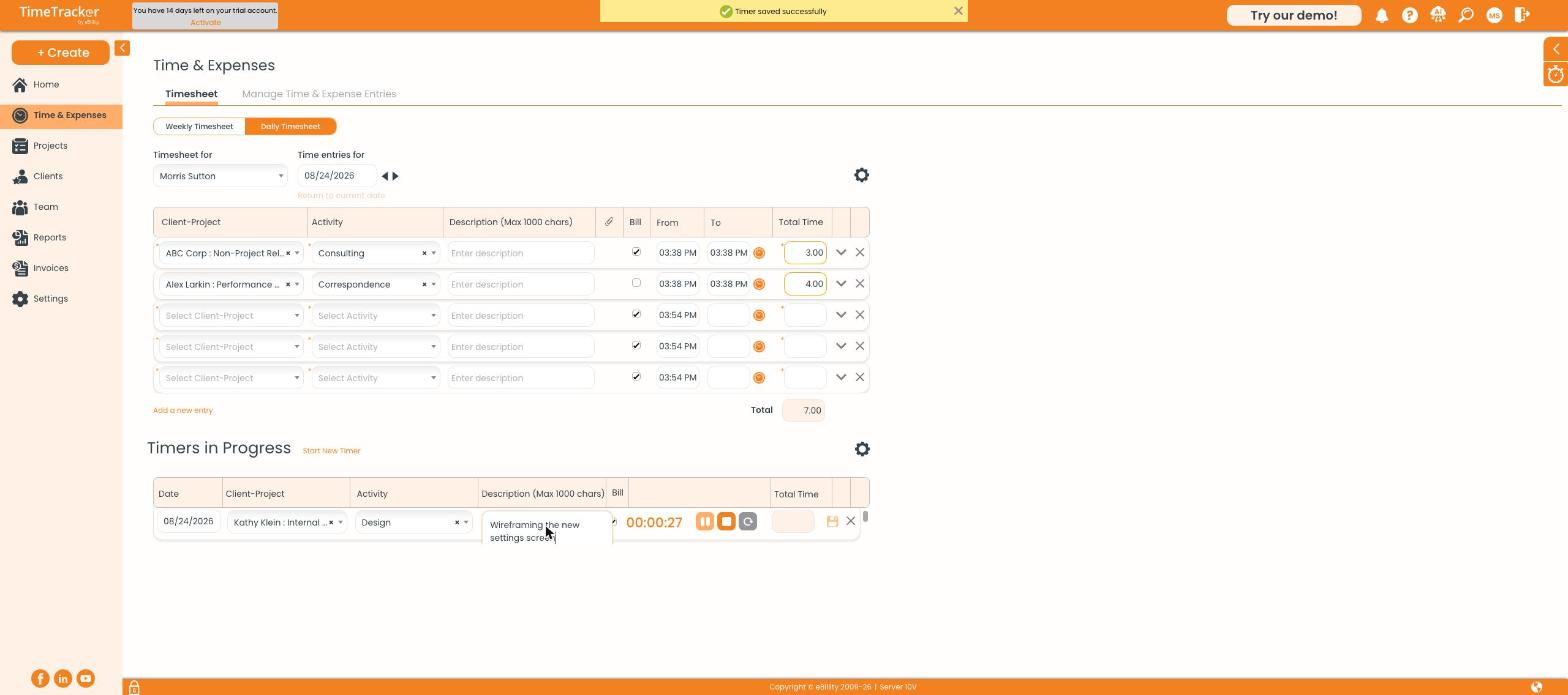
A running timer with the client, project, activity, and description filled in.
Pausing, Stopping, and Saving

Pause, stop, and reset sit next to the clock, with the save icon on the right.
- Pause holds the clock. Click it again to carry on.
- Stop ends the session and keeps the time.
- Reset sets the clock back to zero and throws the time away.
- Save (the disk icon) adds the time to your timesheet as an entry.
Note: A timer in your browser only runs while that tab is open. Save your timer before you close the browser, or use the mobile app for long-running work.
Common Problems
- Starting a new timer paused the other one. Unless Concurrent Timers is turned on, the new timer becomes the active one and the others pause. Their time isn't lost. An admin can turn on Concurrent Timers in Settings > Timer Settings. See Configuring Timer and Timesheet Settings.
- The saved time is longer than the timer showed. Your firm uses timer rounding, which rounds the timer's time up to the next increment. With 5-minute rounding, a 2-minute timer saves as 5 minutes and a 12-minute timer as 15.
- Your timer is gone. The browser tab was closed before you saved it. Add the time by hand on the daily timesheet. See Tracking Time on the Daily Timesheet.
- You saved the time to the wrong client or project. Fix it in Manage Time & Expense Entries. See Finding and Managing Your Entries.