
Applies to: Workforce · Premium · LawBillity
Comparing the schedule with the hours people log shows who missed a shift, who's working overtime, and whose time went somewhere other than planned. It's worth doing before you run payroll.
How to Compare
Open the Schedule and the timesheets for the same dates. See Viewing Other Users’ Timesheets. For each person, compare:
- Scheduled hours: what the schedule planned.
- Actual hours: what they logged on their timesheet.
- Variance: the difference. Positive means they worked more than scheduled. Negative means less.
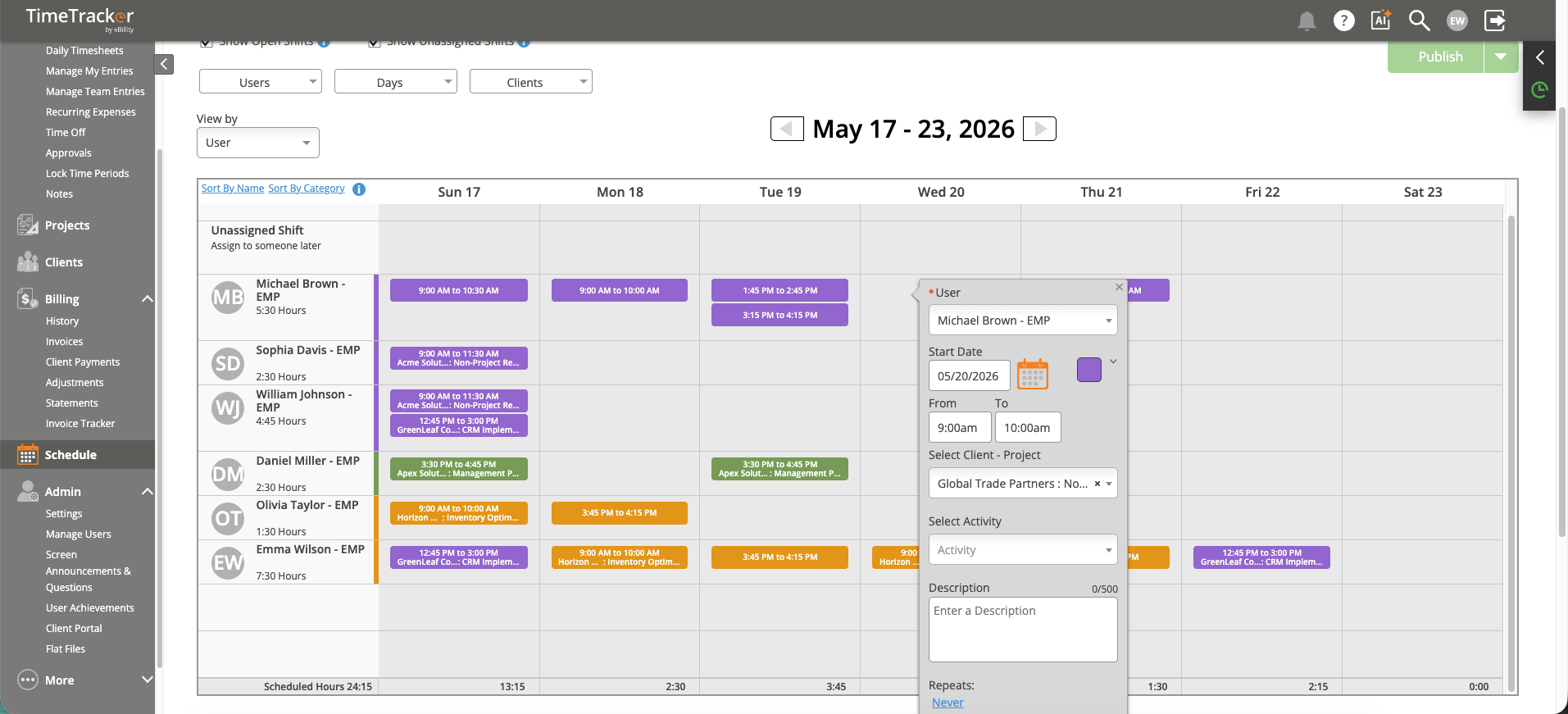
Click a shift to see who it’s for, the date and times, the project, and the description.
What to Look For
Who This Helps
- Shift-based teams (retail, field service, healthcare), where sticking to the schedule matters for coverage and payroll.
- Project managers who want to know if people are spending time where it was planned.
- Payroll admins who need to check hours before processing. See Payroll Reports.
Common Problems
- Someone worked but shows no hours. They may not have logged or submitted their time yet. Check their Pending entries in Manage Team Entries.
- The schedule itself is out of date. Update the shifts so future comparisons are accurate. See How to Create and Assign Shifts.