
Applies to: Workforce · Premium · LawBillity
Admins and managers can open anyone's timesheet to check their hours, fix a mistake, or log time for someone who was out or forgot. Anything you change is saved under their name, not yours.
Opening Someone's Timesheet
- Click Entries > Weekly Timesheets.
- In Timesheets for at the top, choose the person. The timesheet reloads with their entries.
- Review, correct, or add entries the same way you would on your own timesheet. You can change hours, the client-project, and descriptions.
The Daily Timesheet lets you switch people the same way.
Reviewing the Whole Team at Once
To check everyone without switching timesheets, click Entries > Manage Team Entries. Use the status filters at the top right (Pending, Submitted, Approved, Rejected) and the Find panel to narrow the list to one person, client, project, or date range.
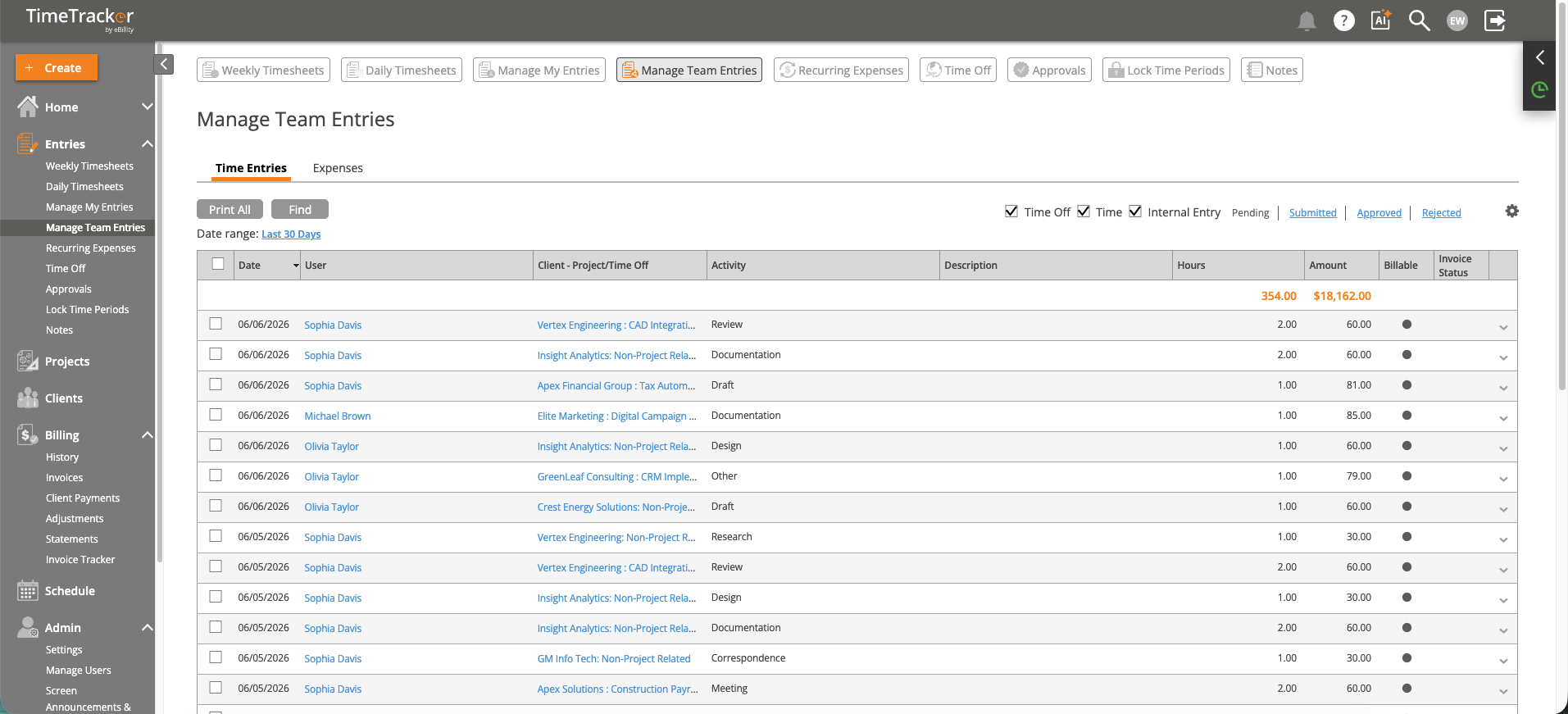
Manage Team Entries: everyone's time in one list, with status filters at the top right. Click the picture to see it full size.
Common Problems
- You can’t change someone’s entry. It's probably approved. Approved entries are view-only, so reject it to send it back, then fix it. Locked days don't stop you: admins and managers can still add or edit entries in a locked period. See I Can't Edit a Time Entry.
- You don’t see Timesheets for. Only admins and managers can open other people's timesheets. See What Employees See vs. What Admins See.
- You want to approve the week once it looks right. See Approving and Rejecting Time Entries.