
Applies to: Workforce · Premium · LawBillity
These settings decide how time works for everyone at your firm: whether people use timers or clock in with time cards, whether timer time is rounded, whether new entries start out billable, which day the week starts, and more. Set them once, ideally before your team starts logging time, so you don't have to fix entries later.
Where the Settings Are
Click Admin > Settings. Time settings are spread over three pages: System Settings, Time Tracking Method, and Timer Settings. Make your change and click Save.
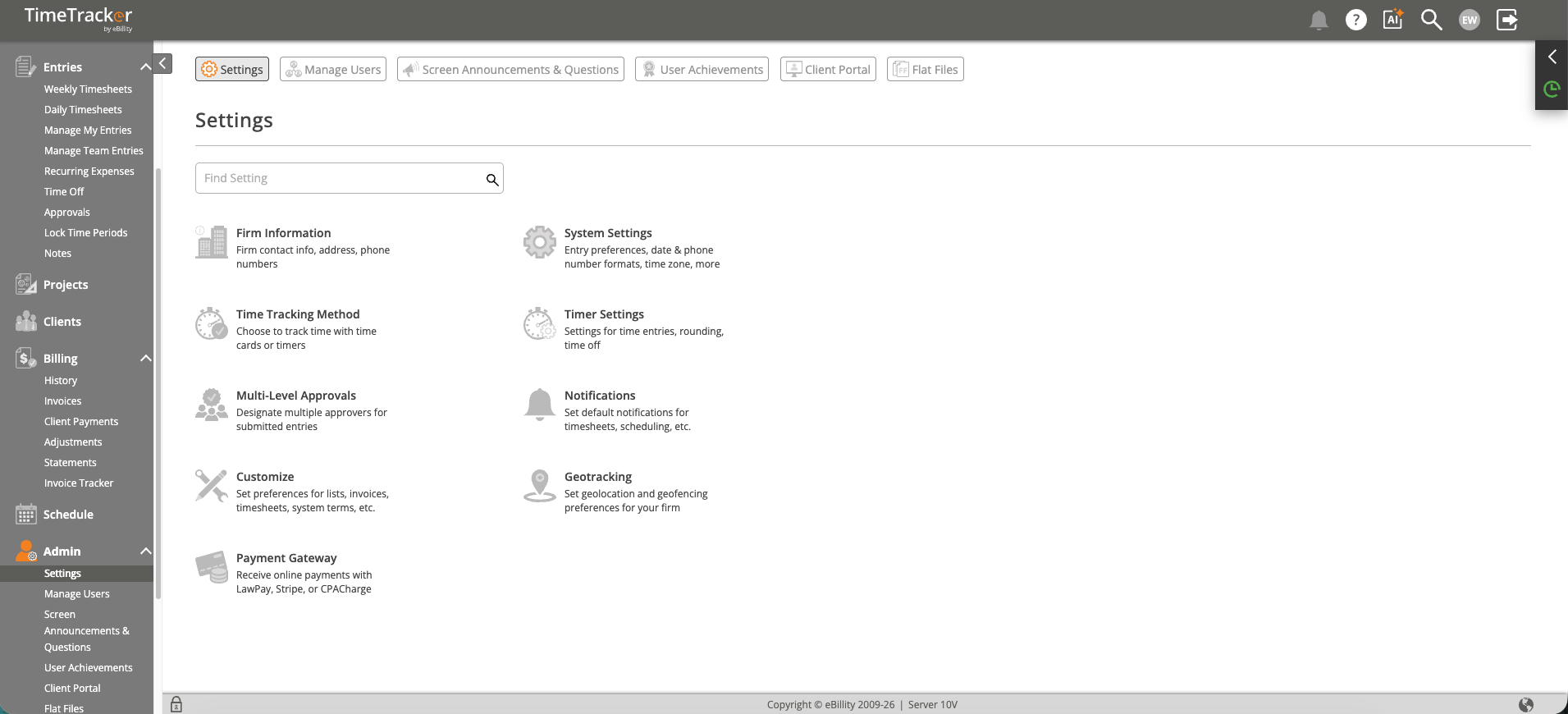
Admin > Settings: each page holds one group of firm-wide settings.
How Timer Rounding Works
Timer Rounding rounds the time on the built-in timer up to the next increment you choose. With 6 minutes, a timer that ran 2 minutes saves as 6, and one that ran 8 minutes saves as 12. Pick the increment your engagement letters or contracts use (6 minutes is a tenth of an hour). If you don't bill by increments, leave rounding off so hours match what people actually worked.
Timers or Time Cards
Timers is the default: people start and stop a timer, or type their hours. Time Cards is for teams that clock in and out of shifts. People take paid or unpaid breaks (with a countdown and a reminder before the break ends) and switch projects during the shift. Time card options, including rounding of clock-in and clock-out times (up or down) and overtime rules, then live at Admin > Time Card Settings.
Common Problems
- One client’s entries don’t follow the billable default. That client has its own setting. Check Override Firm Billable Status Default on the client's Other Details tab. See Setting Client Billing Rates and Overrides.
- Starting a timer pauses the one that was running. That's what happens when Concurrent Timers is Disabled. Enable it to let timers run side by side.
- The weekly timesheet starts on the wrong day. Change Work Week starts on in System Settings.
- People aren’t getting submission reminders. Check the Timesheets tab under Notifications. Users can also turn reminders off for themselves. See Managing Your Personal Notification Settings.
- You can’t see Admin > Settings. Only admins can change firm settings.