
Applies to: Billing
You need a client before you can track time or send an invoice. A client is whoever receives your invoice, a person or a business. All you need to start is the name.
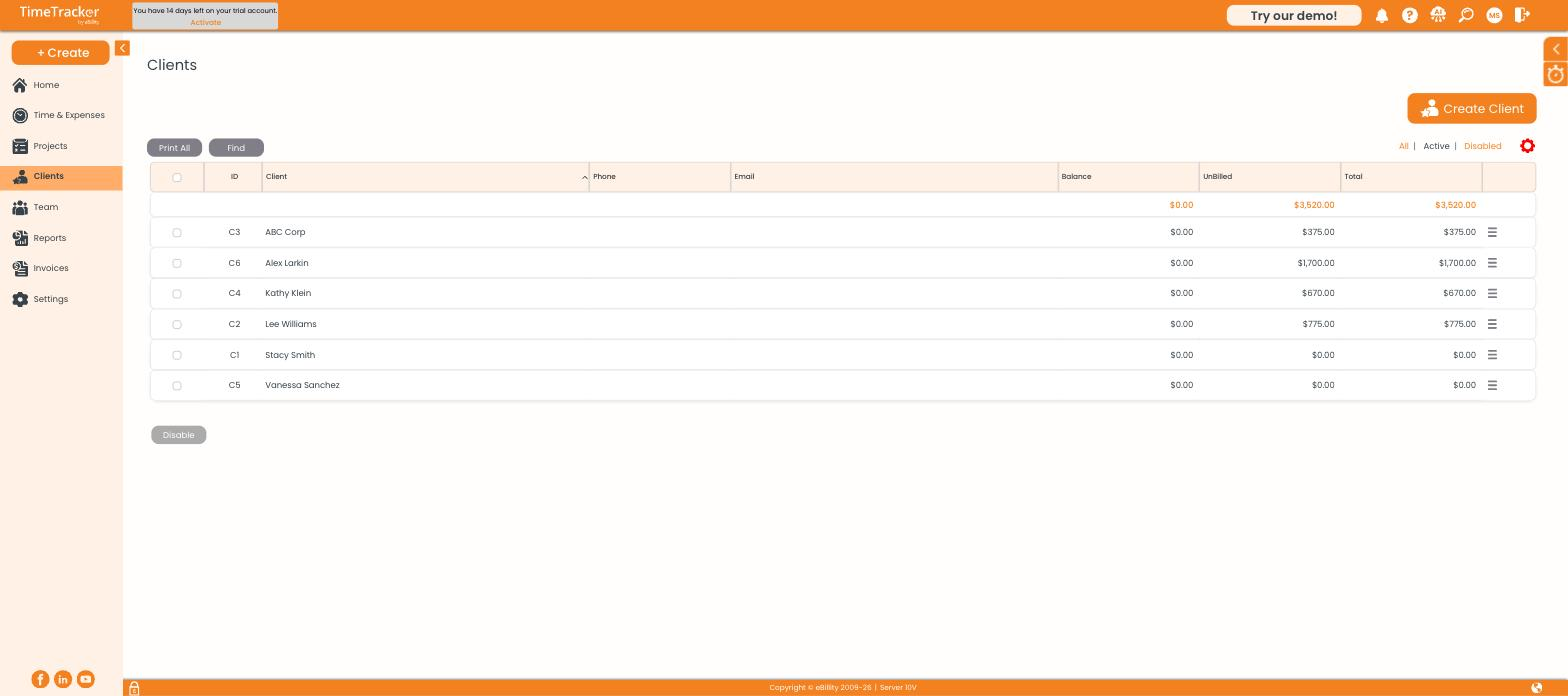
The client list, with each client's balance, unbilled amount, and total. Click the picture to see it full size.
Adding a Client
- Click Clients, then Create Client. Or use + Create > Client.
- Choose the Client Type. For a Person, enter first and last name. For an Organization, enter the business name.
- Type the name exactly as it should appear on invoices.
- Click Save & Close.
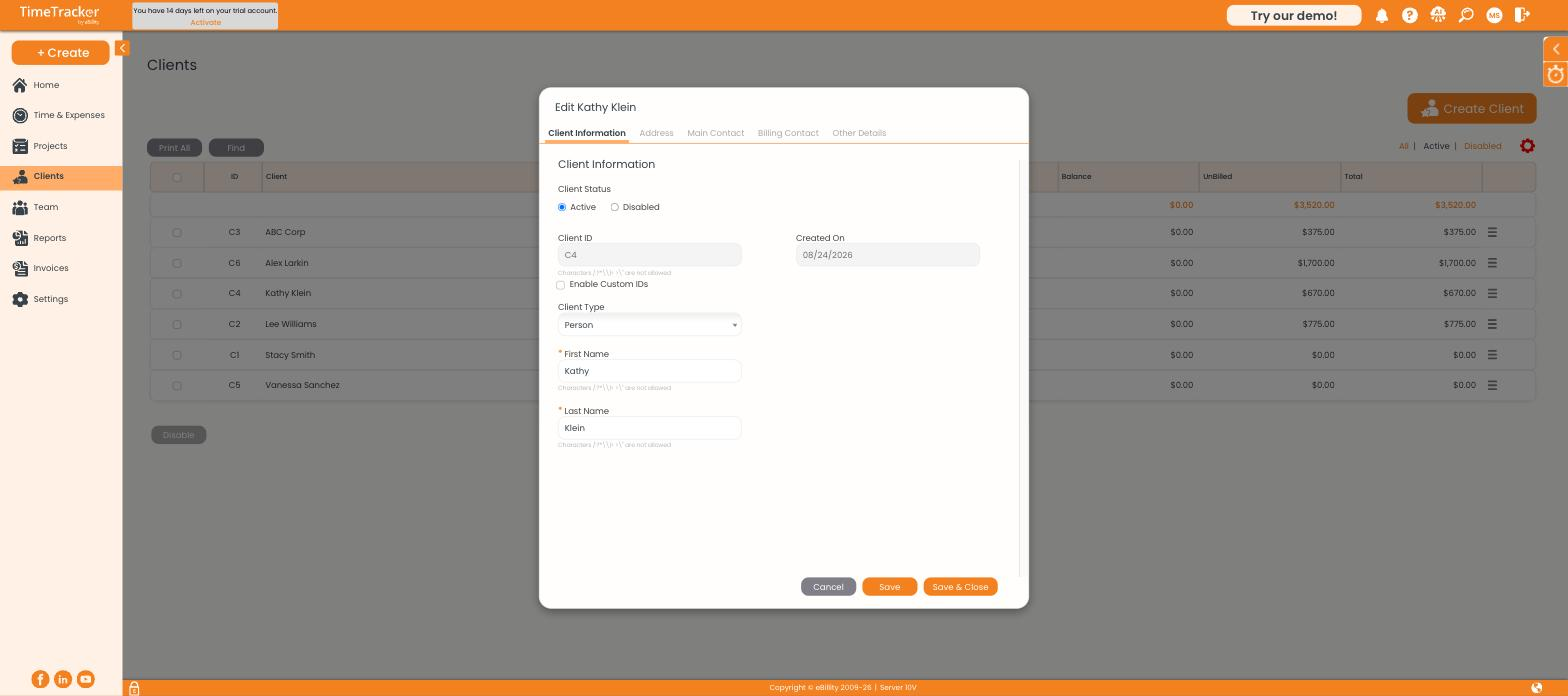
The client record opens on Client Information, with the other tabs across the top.
Before You Invoice This Client
- Address tab: the address printed on the invoice.
- Billing Contact tab: who receives invoices, if it's not your day-to-day contact on Main Contact.
- Other Details tab: Payment Terms, such as COD or Net 30. This is the default on every invoice for the client and sets the due date. Click Add to create a term that isn't listed.
Settings for Special Cases
Most clients don't need these. They're all on the Other Details tab.
Disabling an Old Client
- Select the client in the list.
- Click Disable at the bottom.
The client drops out of the dropdowns, but their invoices, entries, and reports stay, which is why disabling beats deleting: you may need that history at year end. Use the All | Active | Disabled filters to find them again.
Common Problems
- A client is missing from the timesheet dropdown. It's probably disabled. Switch the list to Disabled to check.
- Save doesn’t work. Fill in every field marked with a red star, and leave these characters out of names: / : ? * \ | < > ".
- The client’s open balance looks too low. Their latest invoice may still be a pre-bill, which only counts toward the unbilled balance. See Recording a Client Payment.
- You use QuickBooks Online. Clients sync both ways, so check for the client there before adding it by hand. See Connecting QuickBooks Online.