
Applies to: Workforce · Premium · LawBillity
A project is a piece of work for a client, such as Website Redesign for Acme Corporation. Create one when you want to track time, expenses, and budget for that work separately from the client's other work.
Creating a Project
- Click +Create at the top and choose Project. The Add New Project form opens.
- Choose the Client. Every project belongs to a client.
- Enter a Project Name your team will recognize in a dropdown.
- Leave Project Status on Open. Change it to On Hold or Completed later as the work moves along. (Admins can edit the list of statuses in Custom Lists.)
- Fill in any of the optional settings below, then save the project.
The project shows up right away in timesheets, expense forms, and reports, so your team can start logging time to it.
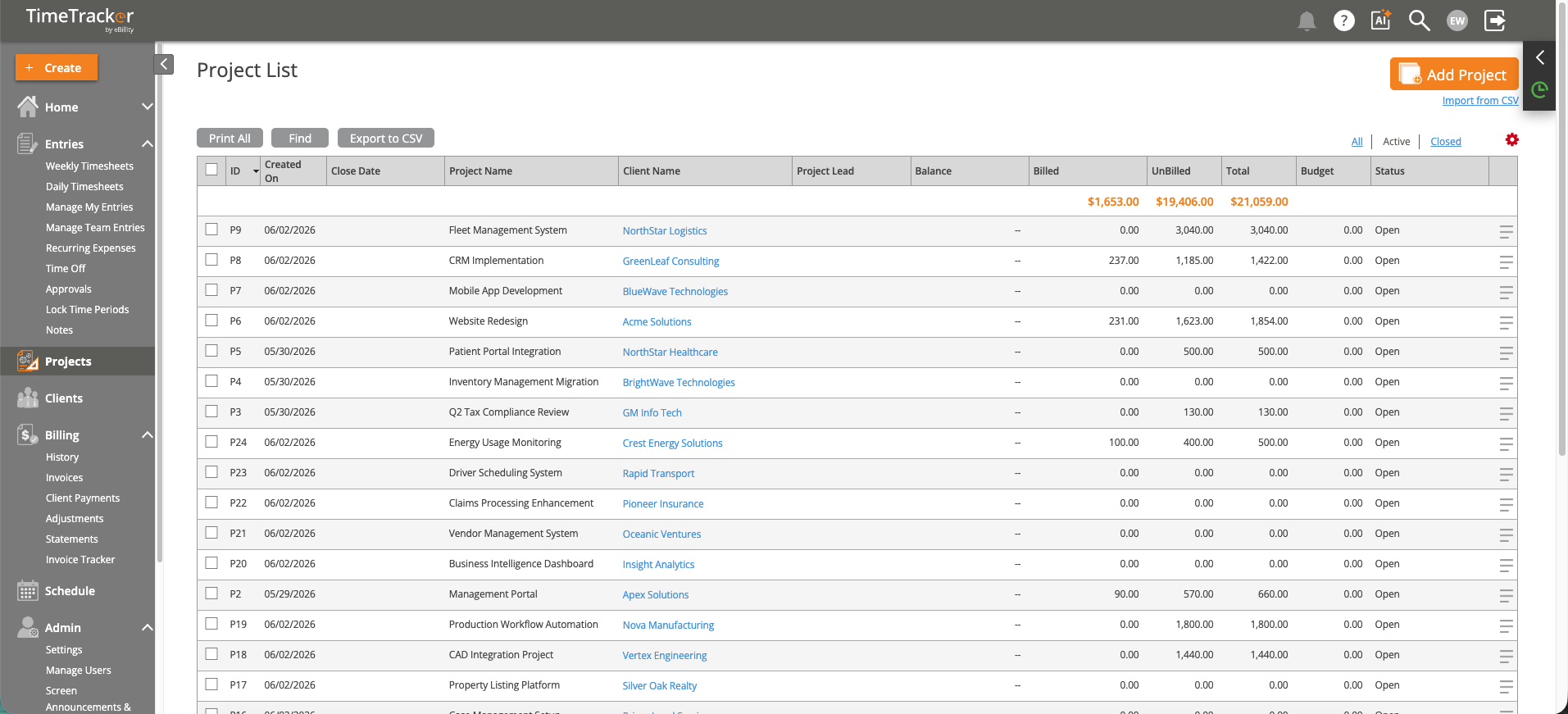
The Project List: each project with its client, lead, budget, and billed and unbilled amounts. Click the picture to see it full size.
Optional Settings
Note: Your firm may say Matter instead of Project, or Customer instead of Client. The steps are the same. See
Renaming Clients, Projects, and Other Terms.
Common Problems
- Your team can’t find the new project. The project may be limited to certain people on its Users tab, or their access to the client may be set to No or Some. See Why Can't I See Certain Clients, Projects, or Activities?.
- The client isn’t in the Client list. Add the client first. See How to Create a New Client.
- You have a lot of projects to add. Import them from a spreadsheet. See Importing Users, Clients, and Projects from a Spreadsheet.