
Applies to: Workforce · Premium · LawBillity
Add new team members as soon as they join so they can track time from day one. It takes about a minute: name, email, role, and a rate if you bill for their time.
Adding a User
- Go to Admin > Manage Users and click Add User at the top. (During first-time setup you can also use the Invite your Users card in the Set Up Wizard on the Dashboard.)
- On the Overview tab, enter their first name, last name, and email address. Add their Hire Date if you use time off accruals based on hire date.
- On Premium and LawBillity, enter their Standard Billing Rate (and Overtime Billing Rate if you bill overtime differently). This is what clients are charged. Without it, their time can bill at $0.00.
- On the Access Permissions tab, choose their role and which clients and projects they can see. See Understanding User Roles.
- Click Save.
They get an invitation email with instructions to set a password. They can log in as soon as they've set it.
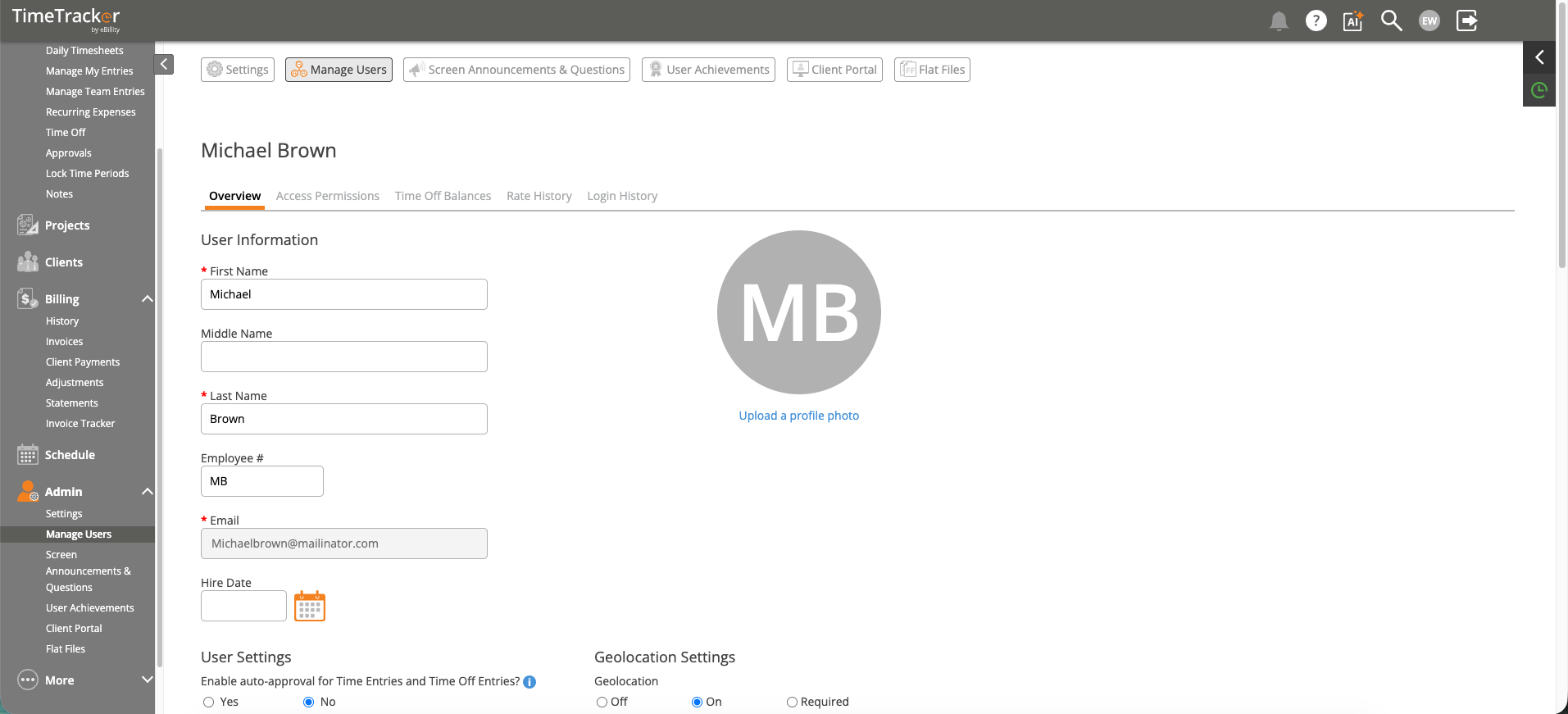
The user profile, where you can change their details and settings later.
Note: Each person you invite uses one user seat. If all your seats are taken, add one first. See
Adding More Users: User Seats.
Other Settings on the Overview Tab
After You Add Them
- User group: put them in a team or department so you can filter reports. See Managing User Groups.
- Project access: add them to any projects limited to selected people. See Managing Project Access and Team Members.
- Activity groups: if you use them, check that their clients and projects have the right groups so they see the right activities.
Common Problems
- You’re out of seats. Add seats in Admin > Settings > Firm Information > Manage Subscription. See Adding More Users: User Seats. Manage Users lists people assigned to seats separately from people who aren't yet.
- The invitation email didn’t arrive. Ask them to check their spam or junk folder, and check the email address you entered.
- The new user can’t see any clients. Check their client access on the Access Permissions tab, and the firm default for new users in Admin > Settings > System Settings. See Why Can't I See Certain Clients, Projects, or Activities?.
- Your firm signed up through ADP Marketplace. Add and manage users in the ADP Marketplace instead.
- You have a lot of people to add. Import them from a spreadsheet. See Importing Users, Clients, and Projects from a Spreadsheet.
- Someone left. Uninvite them to free the seat, then disable them. See Removing a User: Uninvite and Disable.
If your menus say Workers instead of Users, your firm renamed its terms. See Renaming Clients, Projects, and Other Terms.