
Applies to: Premium · LawBillity · Billing (mobile app)
Tap any invoice in the Invoices list to see it in full and take action on it, like emailing it to the client or recording a payment.
What You'll See
The full invoice: your company name, the client, invoice number and date, and each line with its Date, By, Type, Service Summary, Hours/Qty, Rate, and Amount. The Total Hours and Total Invoice Amount are at the bottom.
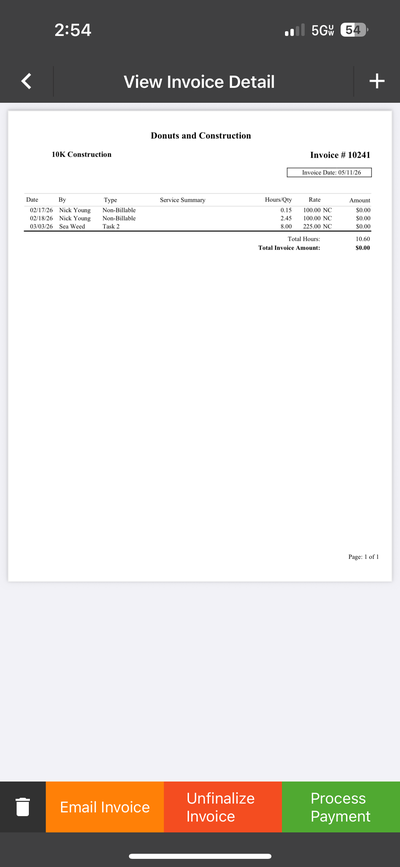
An invoice opened in the app, with the action buttons below it.
What You Can Do
Common Problems
- A rate or amount on the invoice is wrong. Unfinalize it, fix the entry or rate, and finalize again. See Why Does My Invoice Show $0.00? if lines show $0.00.
- You don’t see these buttons. Your permissions may not include invoicing. Ask your admin.