
Applies to: Premium · LawBillity
When a client has its own rate agreement, like a discount or a premium rate, set it on the client once. Time Tracker then uses it for that client's time, so you don't have to fix invoices by hand.
Setting a Client Rate
- Click Clients and click the client's name.
- Open the Other Details tab.
- Tick Override user rates and set a specific rate for this client.
- Enter the hourly rate and, if you bill overtime differently, the overtime rate.
- Click Save.
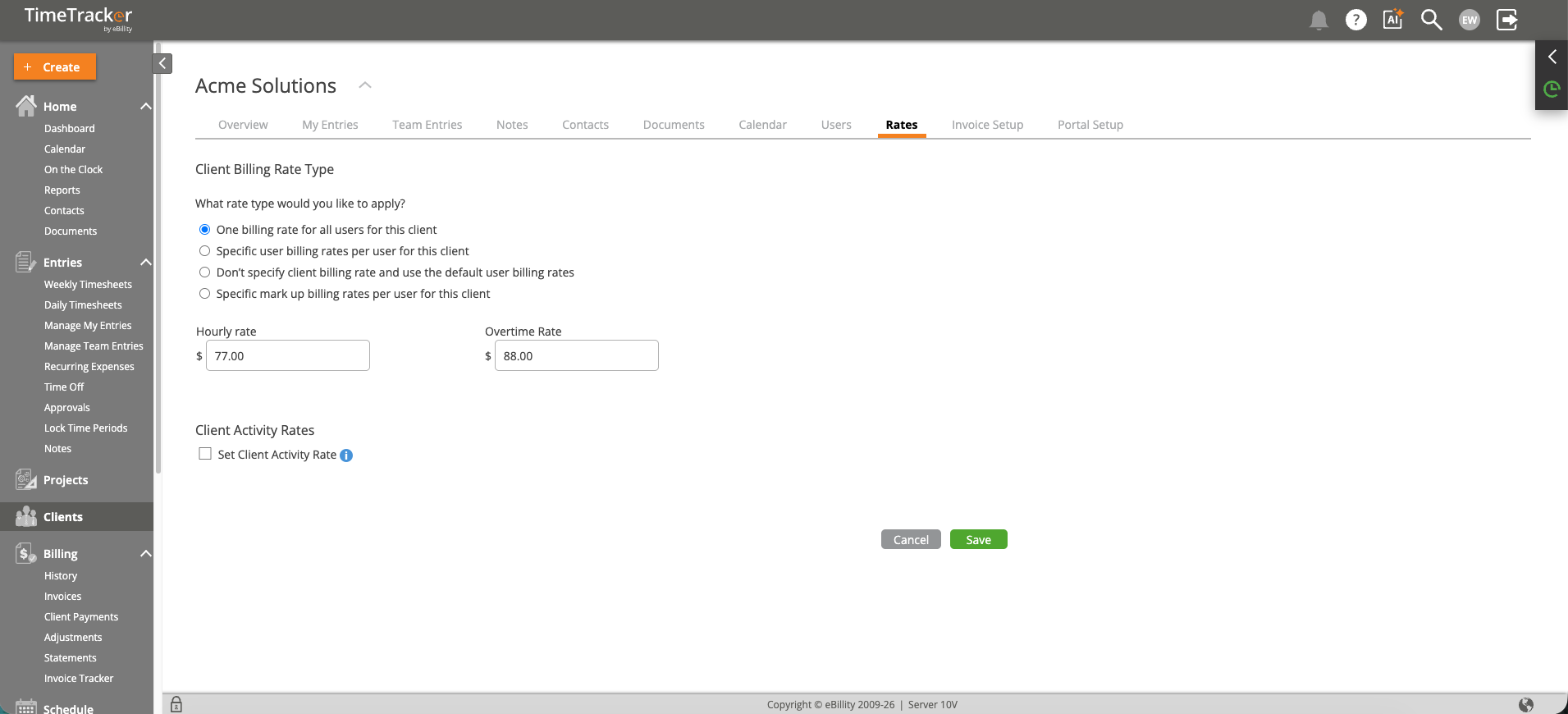
The client’s rate settings: rate type, hourly and overtime rates, and per-activity rates.
Different Rates for Different Work
You can also charge one client different rates for different activities. For example, Strategy at $250 an hour and Admin at $150. Set these in the activity rate settings on the client's Rates tab.
If an activity should cost more for every client, set its Rate (and OT Rate) instead, in Admin > Settings > Customize > Custom Lists > Activity.
Which Rate Wins
Time Tracker uses the most specific rate it finds, in this order:
- Project rate, set on the project's Billing tab. It beats everything else for that project.
- Client rate, set on the client as above.
- Activity rate, the Rate set on the activity in Custom Lists.
- User rate, the person's Standard Billing Rate. See Setting User Billing Rates.
If none of these is set, the entry bills at $0.00.
Other Billing Settings on the Client
These are on the same Other Details tab:
Common Problems
- The invoice shows the wrong rate. When you select entries for an invoice, the Rate column shows the rate actually used. Work down the list above to see where it came from. A project rate beats the client rate. See Selecting Entries for an Invoice.
- The invoice shows $0.00. No rate is set at any level. See Why Does My Invoice Show $0.00?.
- Overtime isn’t billed at the overtime rate. Check that Overtime Billing Rates is Enabled in Admin > Settings > Timer Settings.
- You changed the rate but an old invoice didn’t change. New rates don't reprice entries already on a finalized invoice. To correct one the client already has, see Creating Billing Adjustments.