
Applies to: Workforce · Premium · LawBillity
If your firm uses approvals, your manager can't approve your time until you submit it. Submit at the end of each day or week so entries don't pile up and invoices and payroll aren't held up.
How to Submit
- Enter your time on the Weekly or Daily Timesheet as usual.
- Click Entries > Manage My Entries. Make sure Pending is selected at the top right.
- Tick the entries you want to submit, or use Select All.
- Click Submit.
Their status changes from Pending to Submitted, and they're now waiting for your manager or admin. To see them, click Submitted at the top right.
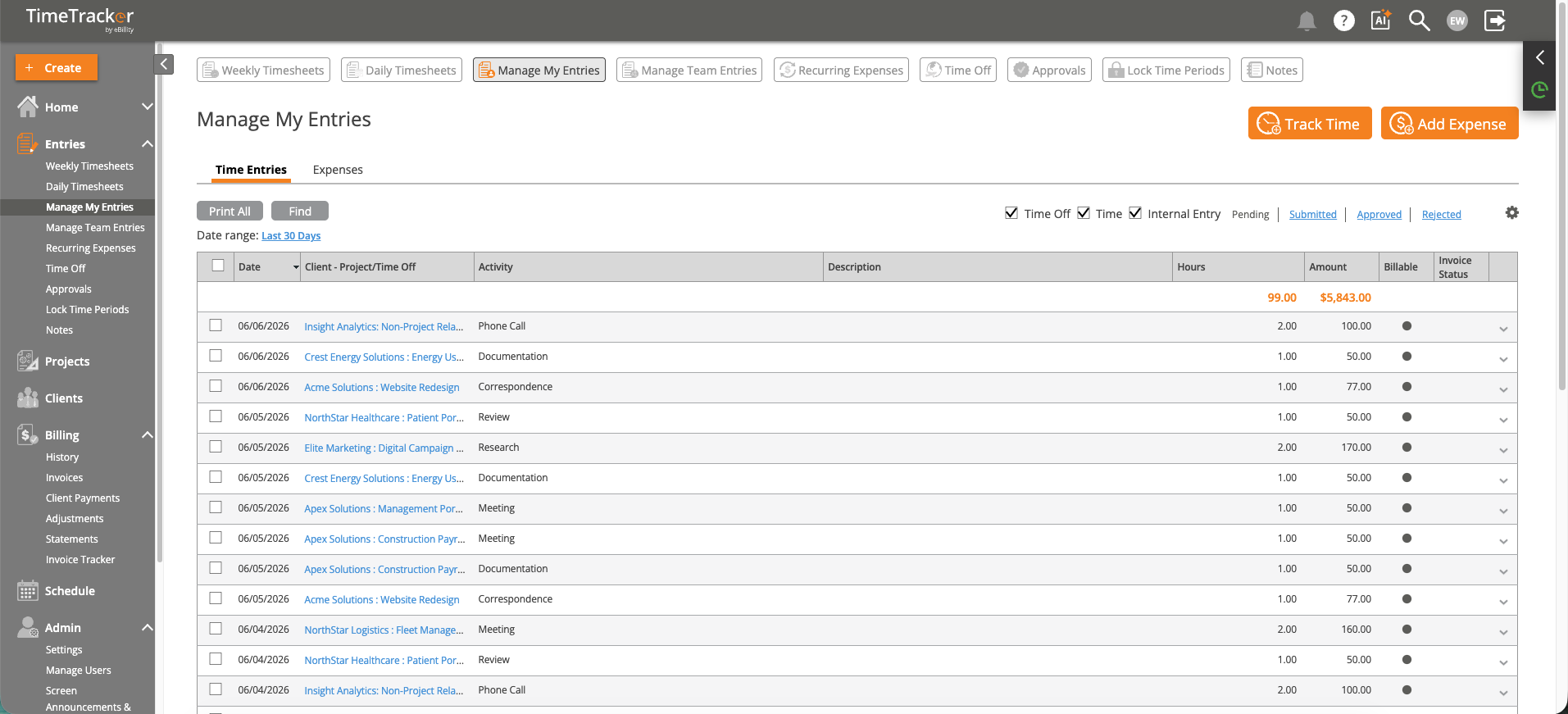
Manage My Entries: your entries with hours, amounts, and status. The status filters are at the top right. Click the picture to see it full size.
What Happens Next
- Approved: your manager accepted the entry. It's view-only now and ready for invoicing and payroll.
- Rejected: your manager sent it back. Click Rejected at the top right to see the entry and the reason, fix it, and submit it again.
Taking an Entry Back
Spotted a mistake after submitting? Until the entry is approved, click Submitted, tick the entry, and click Revert to Pending. It goes back to Pending so you can edit it. See Editing, Deleting, or Taking Back a Time Entry.
Common Problems
- You can’t change an approved entry. Only your approver can send it back. Ask them to reject it, then fix it and submit it again. See I Can't Edit a Time Entry.
- You can’t change an entry on a locked day. Ask an admin or manager. They can still edit it for you, or unlock the day.
- You can’t find an entry to submit. It may already be Submitted or Approved. Switch the status filter at the top right, or use Find to search by date.
- Your entries are approved without you submitting them. Your admin has turned on auto-approval for you, so there's nothing to submit.
Check your entries before you submit. Once they're approved, only your approver can send them back for changes.