
Applies to: Workforce · Premium · LawBillity
The Calendar lays out your time on a day, week, or month grid. It's the easiest way to spot an afternoon you forgot to log, or two entries that overlap.
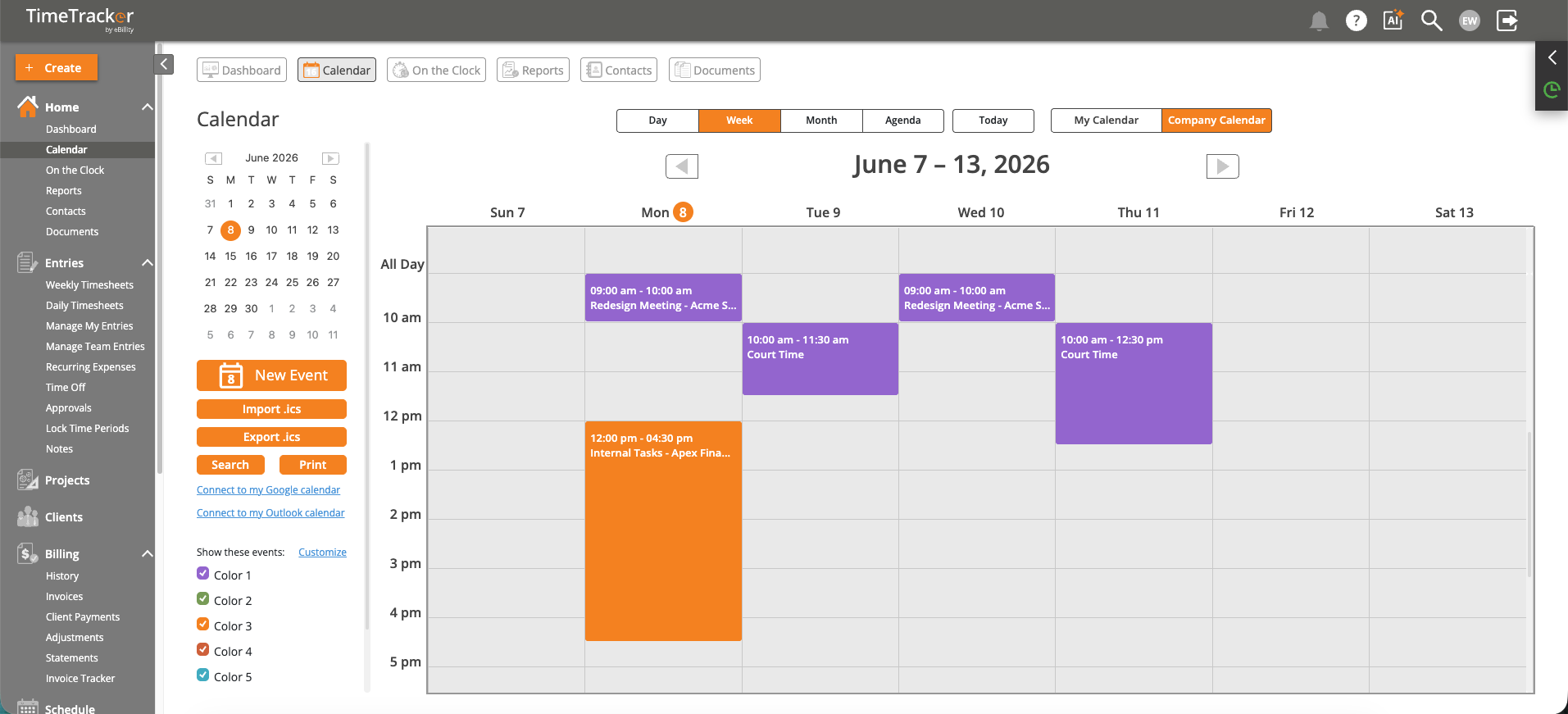
The Calendar in Week view. You can also switch to Day, Month, or Agenda.
Opening the Calendar
Click Calendar in the bar across the top, or Home > Calendar in the left menu. It opens in Week view.
Choosing a View
Logging Time from the Calendar
- Click an empty time slot.
- The time entry form opens with that date and time filled in.
- Choose the client-project and activity, check the duration, and save.
What Else Shows Up
- Shifts: if your firm uses Schedule, your assigned shifts appear too.
- Meetings from Google Calendar or Outlook: if you've connected your calendar, its events show as read-only items. See Syncing with Google Calendar or Outlook.
- Colors help you tell clients or projects apart.
Common Problems
- Your meetings don’t show. Connect Google Calendar or Outlook first. See Syncing with Google Calendar or Outlook.
- The week starts on the wrong day. The Calendar follows your firm's week start day. Ask your admin to check Work Week starts on in Admin > Settings > System Settings.
- You have events in another calendar app you want to bring in once. See Importing and Exporting Calendar Events (.ics).