
Applies to: Workforce · Premium · LawBillity
Use a timer when you want to know exactly how long something takes. Start it when you begin, stop it when you're done, and save it as a time entry. Timers also help if you tend to forget to log time at the end of the day.
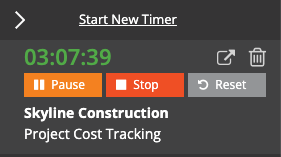
A running timer with its Pause, Stop, and Reset buttons and the client-project it's for.
Starting a Timer
- Click Entries > Daily Timesheets.
- Under Timers in Progress at the top, click Start New Timer. The clock starts counting.
You can also start timers from the mobile app, the Chrome extension, or the Outlook add-in.
Pausing, Stopping, and Resetting
Saving the Timer as a Time Entry
- Stop the timer.
- Choose the Client-Project and Activity, and tick or untick Bill.
- Add a Description. It's worth it for billable work, since the client sees it on the invoice.
- Click the Save icon. The timer becomes a time entry on your timesheet.
Switching Between Tasks
You can have several timers open. Unless your admin has turned on Concurrent Timers, only one runs at a time: starting a new timer makes it the active one and pauses the others, so you can switch tasks with one click. To go back, click play on the paused timer. With Concurrent Timers on, several timers can run at once.
Common Problems
- Another timer paused when you started this one. That's expected when Concurrent Timers is off. Your admin can turn it on in Admin > Settings > Timer Settings.
- The entry shows more time than the timer ran. Your firm uses Timer Rounding, which rounds timer time up to the next increment. With 6 minutes, 2 minutes becomes 6 and 8 minutes becomes 12.
- Your running timer disappeared. If your admin switches the firm from Timers to Time Cards, running timers are stopped and deleted. Entries you'd already saved stay. See Timer vs. Time Card: Which Should I Use?.
- You forgot to start the timer. Timers always record the current time, so type the time in on your timesheet instead. See How to Enter Time for a Previous Day.
- The timer stopped or shows the wrong time. See My Timer Isn't Working Properly.