
Applies to: Workforce · Premium · LawBillity
The Dashboard is the first screen you see after signing in. Use it to check what you've logged today before you leave, open a project you're working on, or see how much of your team's time is billable.
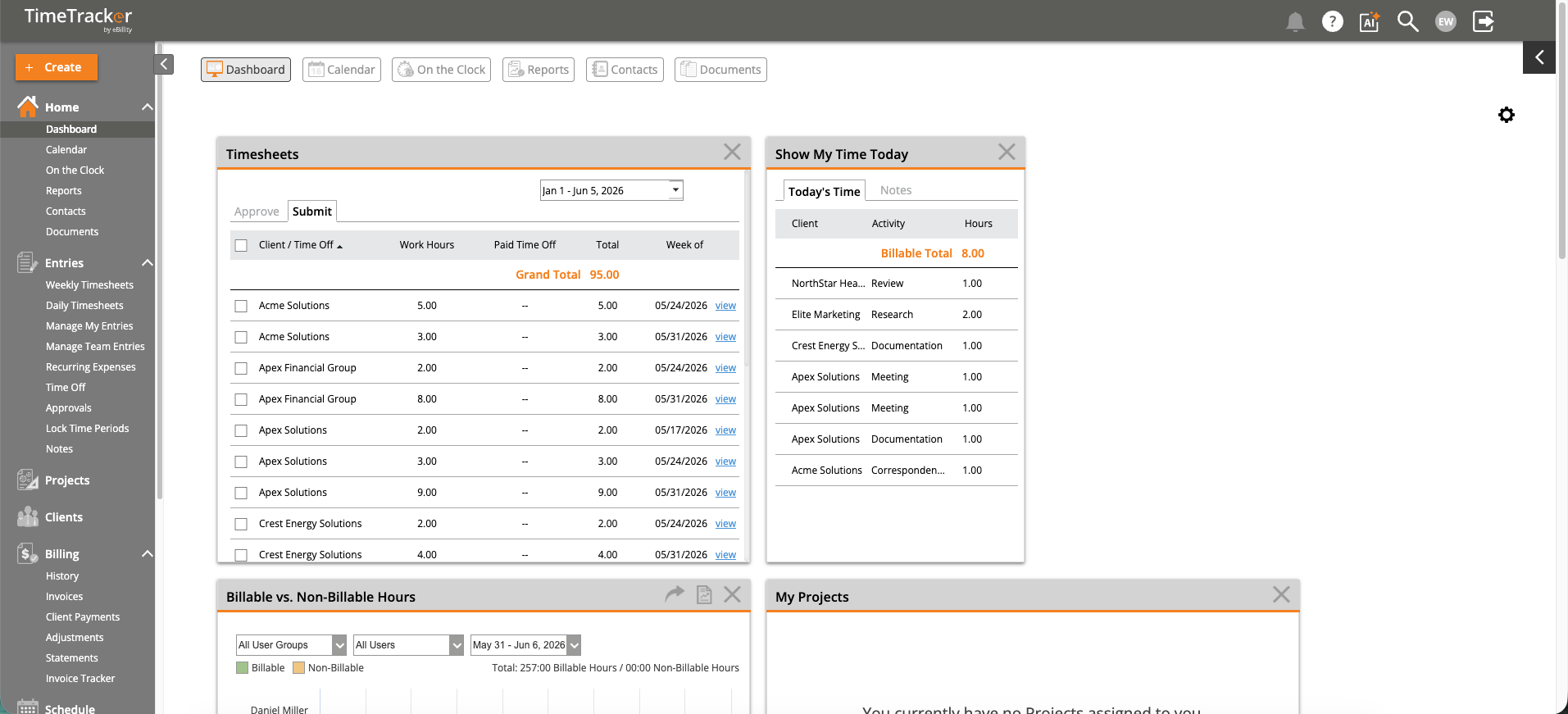
The Dashboard with its widgets, including today's time and billable vs. non-billable hours. Click the picture to see it full size.
What Each Widget Shows
Close a widget you don't need with its X. There's also a gear icon at the top right of the Dashboard.
Getting to Other Pages
The tabs across the top take you to the Dashboard, Calendar, On the Clock (who's working right now), Reports, Contacts, and Documents. Use + Create to add a time entry, expense, client, project, or invoice from any page. See Navigating Time Tracker: The Sidebar & Quick Create Menu.
Why Your Dashboard Looks Different
Admins and managers see every widget, team-wide data, billing summaries, and, on new accounts, the Set Up Wizard. Employees see their own time and the projects they're assigned to, with no billing data, no other people's information, and no admin controls. See What Employees See vs. What Admins See.
Common Problems
- A project is missing from My Projects. The widget shows only projects you're assigned to. See Managing Project Access and Team Members.
- Nothing happens when you click Time Entry or Expense Entry in + Create. They open in a separate browser window, and your browser blocked it. Allow pop-ups for secure.ebillity.com and try again.
- A widget is missing. It may have been closed with its X, or it's one only admins and managers see. See What Employees See vs. What Admins See.