
Applies to: Workforce · Premium · LawBillity
Before you submit your week, check the totals at the bottom of the Weekly Timesheet. They show any day with missing hours, and how much of your week still needs to be submitted.
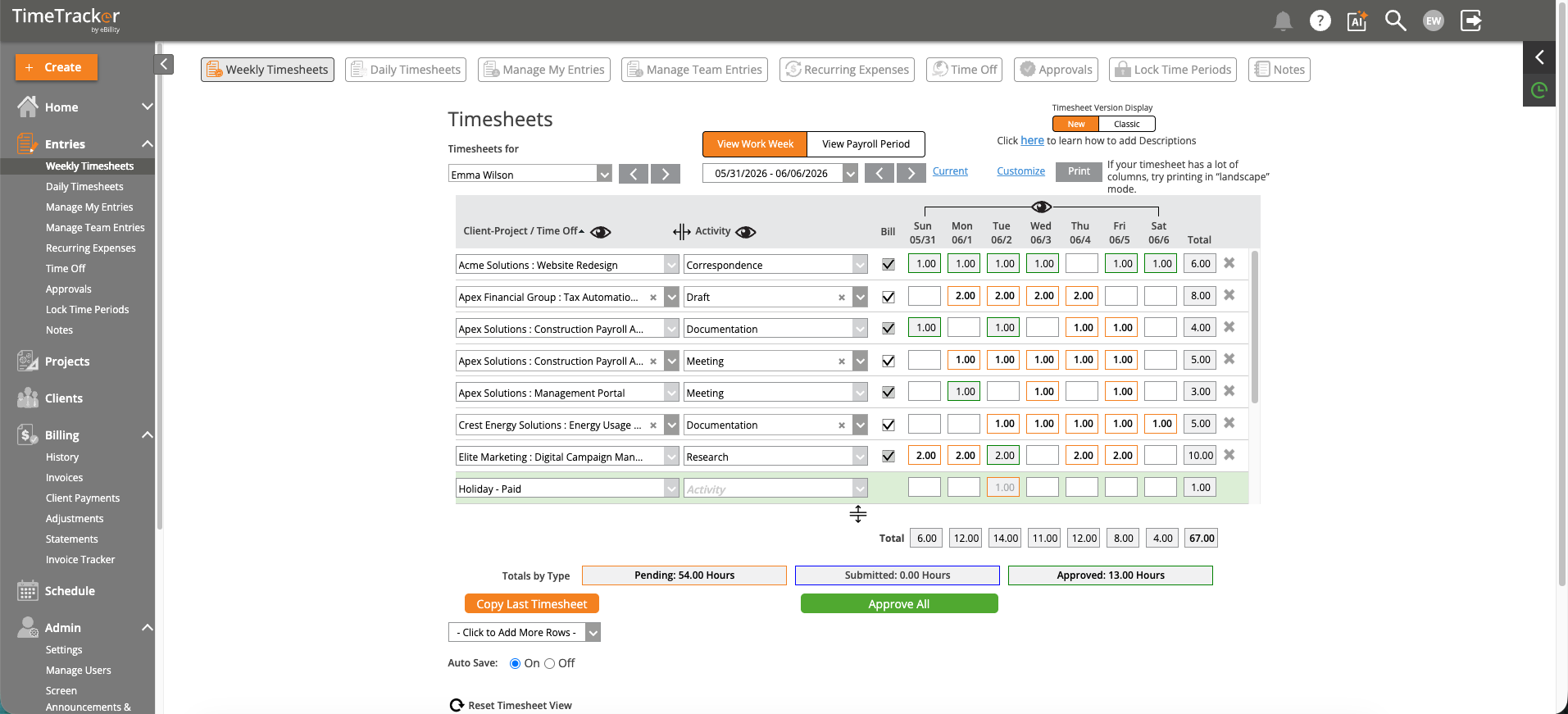
The Weekly Timesheet. The totals are at the bottom of the grid.
Daily and Row Totals
The Total row adds up each day's hours, and each row shows its total for the week. Look for days that are lower than you worked, or empty.
Totals by Type
The Totals by Type bar splits the week's hours by status:
Note: This bar shows approval status, not billing status. To see whether time has been invoiced, see
Understanding Billing Statuses: UnBilled, Pre-Billed, and Billed.
Common Problems
- A day’s total is lower than you worked. An entry is missing. Add it to the right day. See How to Enter Time for a Previous Day.
- Some hours are still Pending after you submitted. Entries you added after submitting start as Pending. Submit them too.
- An entry was sent back. Your approver rejected it. You'll find it under Rejected in Manage My Entries with their reason. Fix it and submit it again. See Editing, Deleting, or Taking Back a Time Entry.
- You can’t change approved hours. See I Can't Edit a Time Entry.