
Applies to: Premium · LawBillity
A draft invoice can still change. When it's right, finalize it: the entries are locked, the invoice gets its number, and it's ready to send.
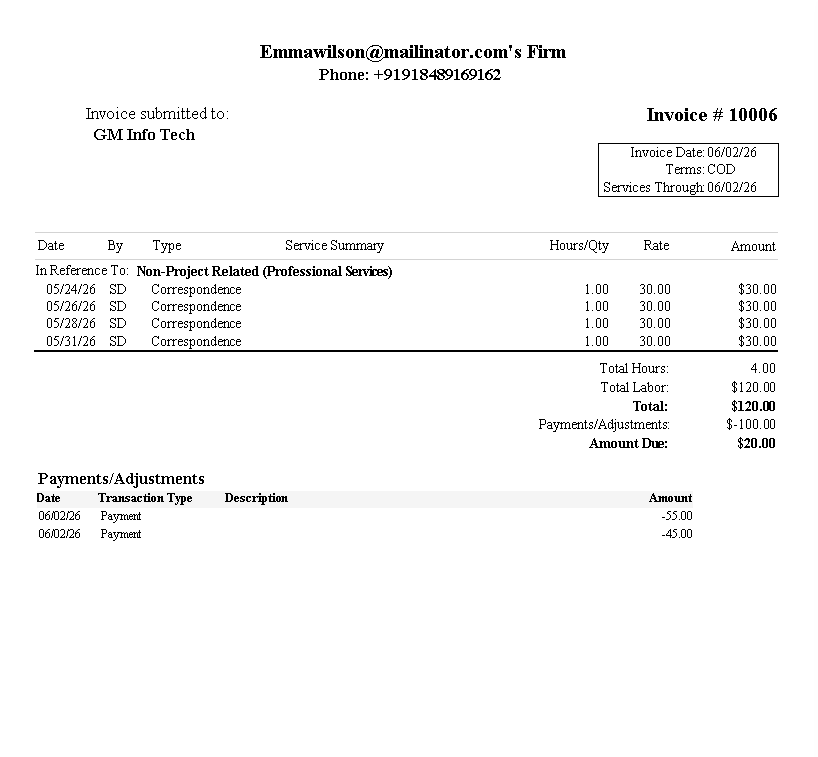
The invoice preview shows the line items, totals, and payment history as your client will see them.
Finalizing an Invoice
- Go to Billing > Invoices and open the draft.
- Check the client, line items, rates, and totals. Watch for $0.00 lines.
- Click Finalize.
To finalize several drafts at once, tick them in the list on Billing > Invoices and click Finalize.
What Finalizing Does
- The invoice's time and expenses go from Pre-Billed to Billed. They stay locked while the invoice is finalized.
- The invoice gets its number. If your Account Type (Admin > Settings > System Settings) is eBillity, numbers are assigned for you. If it's External, you type your own.
- You can send, print, or download it.
Undoing a Finalize
Found a mistake before the client has the invoice? Tick it on Billing > Invoices and click Unfinalize. It goes back to a draft, so you can fix it and finalize again. If the client already has it, correct it with an adjustment instead, so your records match what they received. See Creating Billing Adjustments.
Sending It
- Email: tick the invoices on Billing > Invoices and click Email to send them to the client's billing contact. Send Preferred Method is next to it.
- If you've connected a payment service, a payment link is added to your invoices automatically. See Setting Up Online Payments (Stripe, LawPay, CPACharge).
- Download a PDF to attach to your own email or keep for your records, or Print it.
- Client portal: if the client has portal access, the invoice shows up there. See Configuring the Client Portal.
Common Problems
- The client says they never got it. Check the Email Status column on Billing > Invoices, and the email address on the client's Billing Contact tab. You can be alerted when an invoice email bounces or isn't delivered: see Configuring Firm Notifications.
- You can’t finalize it. If your firm uses approvals, every entry on the invoice must be approved first. See How Time Entry Approvals Work.
- You spotted a mistake after finalizing. Unfinalize it if the client hasn't seen it. Otherwise use an adjustment. See Creating Billing Adjustments.
- The total is $0.00 or too low. A rate is missing. See Why Does My Invoice Show $0.00?.
- The client can’t pay online. Online payments aren't set up yet. See Setting Up Online Payments (Stripe, LawPay, CPACharge).