
Applies to: Premium · LawBillity
At the end of a billing period, an invoice gathers a client's unbilled time and expenses and prices them at your rates. You choose what goes on it, and Time Tracker does the math.
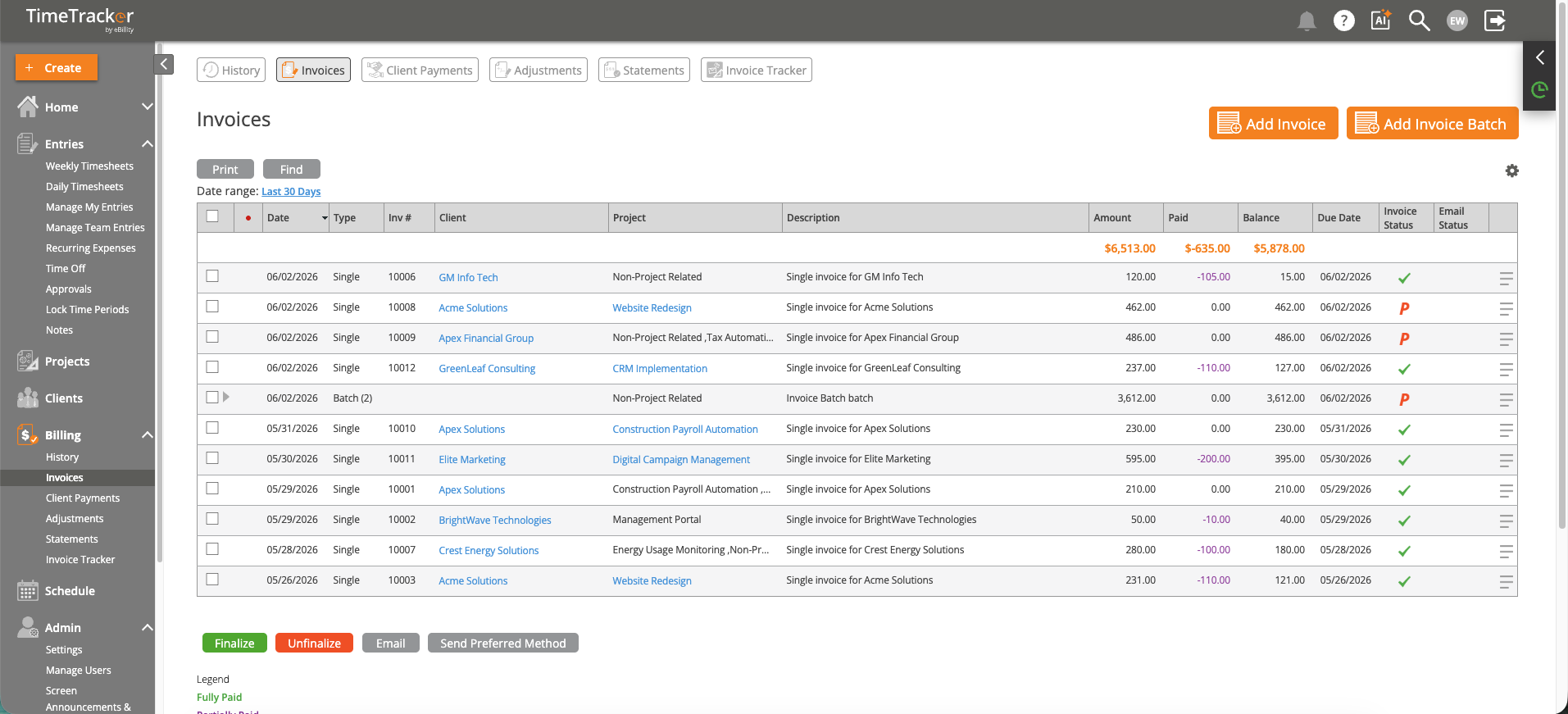
Billing > Invoices lists every invoice with its amount, what's been paid, and whether the email was delivered. Click the picture to see it full size.
Creating an Invoice
- Click + Create > Invoice, or go to Billing > Invoices and click Add Invoice.
- Fill in the Invoice Date, the Client, and the Payment Terms, such as Net 30. Add notes for the client if you like.
- Click Select Invoice Entries. Filter by project, user, or date range, and tick the entries you want. See Selecting Entries for an Invoice.
- Check the line items. Every line should have a rate and an amount.
- Click Save Pre-Bill. The invoice is saved as a draft and its entries become Pre-Billed.
Billing lots of clients at once? Add Invoice Batch on the Invoices page creates invoices for several clients in one go.
Before You Finalize
A draft can still be changed. Look for $0.00 lines (see Why Does My Invoice Show $0.00?) and anything you meant to include. When it's right, finalize it to lock the entries and send it. See Finalizing and Sending an Invoice.
Invoice numbers depend on the Account Type in Admin > Settings > System Settings: eBillity numbers invoices for you, and External lets you type your own. Your logo, templates, late fees, and other invoice settings are in Admin > Settings > Customize > Invoices. See Setting Up Your Invoices: Logo, Template, Late Fees, and Discounts.
Common Problems
- You don’t see Invoice or the Billing menu. Creating invoices is for admins. Ask an admin to check your user type. See Understanding User Roles.
- Some time is missing from the entry list. It may not be approved yet, may fall outside your date range, or may already be on another invoice. See Understanding Billing Statuses: UnBilled, Pre-Billed, and Billed.
- You can’t finalize because entries aren’t approved. When approvals are turned on, time and expenses must be approved before they can go on a finalized invoice. On Billing > Invoices, an icon marks invoices that contain unapproved entries. See How Time Entry Approvals Work.
- A line shows $0.00. No billing rate was found for that entry. See Why Does My Invoice Show $0.00?.
- Your menus say Customer or Matter. Your firm has renamed some terms. The steps are the same. See Renaming Clients, Projects, and Other Terms.