
Applies to: Workforce · Premium · LawBillity
The Weekly Timesheet shows one week as a grid: a row for each client and project, and a column for each day. It's the quickest way to log time if you catch up at the end of the day or the end of the week.
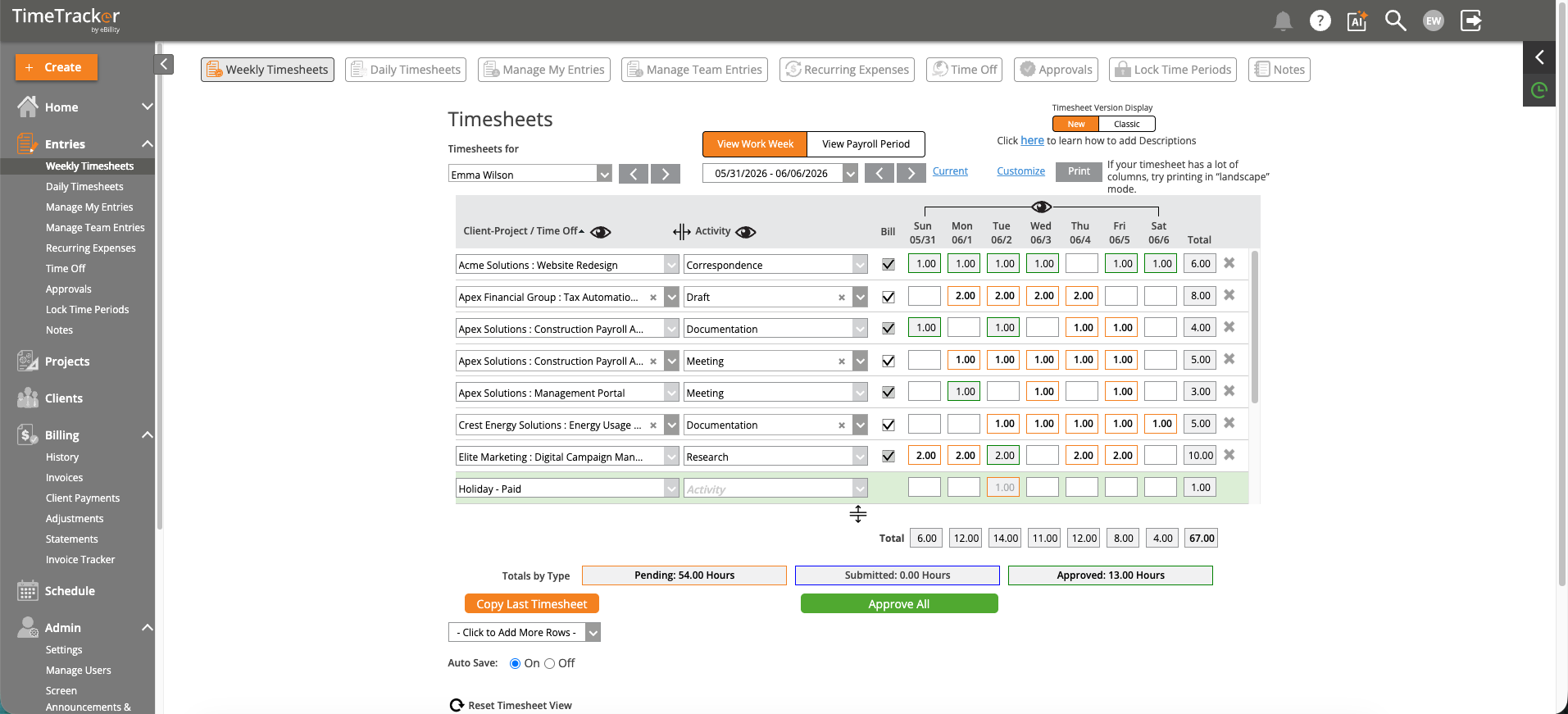
The Weekly Timesheet: one row per client and project, one column per day.
Filling In Your Week
- Click Entries > Weekly Timesheets.
- In an empty row, choose the Customer-Project (or a type of time off) and the Service Item.
- Type your hours under each day. Use decimals: 1.5 is an hour and a half.
- To add a note, click a day's hours. A Description box for that day opens under the grid. If you bill the client, write it so they'll understand it on the invoice.
- Leave Bill ticked for billable work. Untick it for internal time, such as training or admin.
With Auto Save on (it is unless you've turned it off), every change saves as you go.
Saving Time Every Week
- Copy Last Timesheet fills this week with last week's rows, so you only type the hours. See Using Copy Last Timesheet.
- Need more rows? Use Click to Add More Rows under the grid.
- Type the same descriptions a lot? Set up shortcuts. See Typing Descriptions Faster with Auto Text.
Before You Submit
Check the Total row for days with missing hours. Totals by Type shows how many of the week's hours are Pending (not submitted yet), Submitted, and Approved. When the week looks right, submit it from Manage My Entries. See Submitting Time for Approval.
Common Problems
- Your client or project isn’t in the list. You may not have access to it, or it may be inactive. See Why Can't I See Certain Clients, Projects, or Activities?.
- You get a warning when you save a row. A billable row needs both a Customer-Project and a Service Item. Fill in both, or untick Bill.
- You can’t change some hours. The week may be locked, or the entries already approved. See I Can't Edit a Time Entry.
- You logged time to the wrong day or project. Change it here while it's still Pending. If you've already submitted it, see Editing, Deleting, or Taking Back a Time Entry.
- The grid looks different from your coworker’s. Someone may have hidden columns with the eye icons. Click Reset Timesheet View to bring them back.
Other Things on This Screen
- Timesheets for: admins and managers can pick someone else's timesheet. See Viewing Other Users’ Timesheets.
- View Payroll Period shows your pay period instead of a Sunday to Saturday week.
- Print prints the week. If you have a lot of columns, print in landscape.